Verify Data in DynamoDB
Verify Data in DynamoDB
In this step, you will verify that the data from the CSV file has been successfully imported into DynamoDB.
Steps to Perform
- Upload the CSV File to the Bucket
Download the sample CSV file from here.
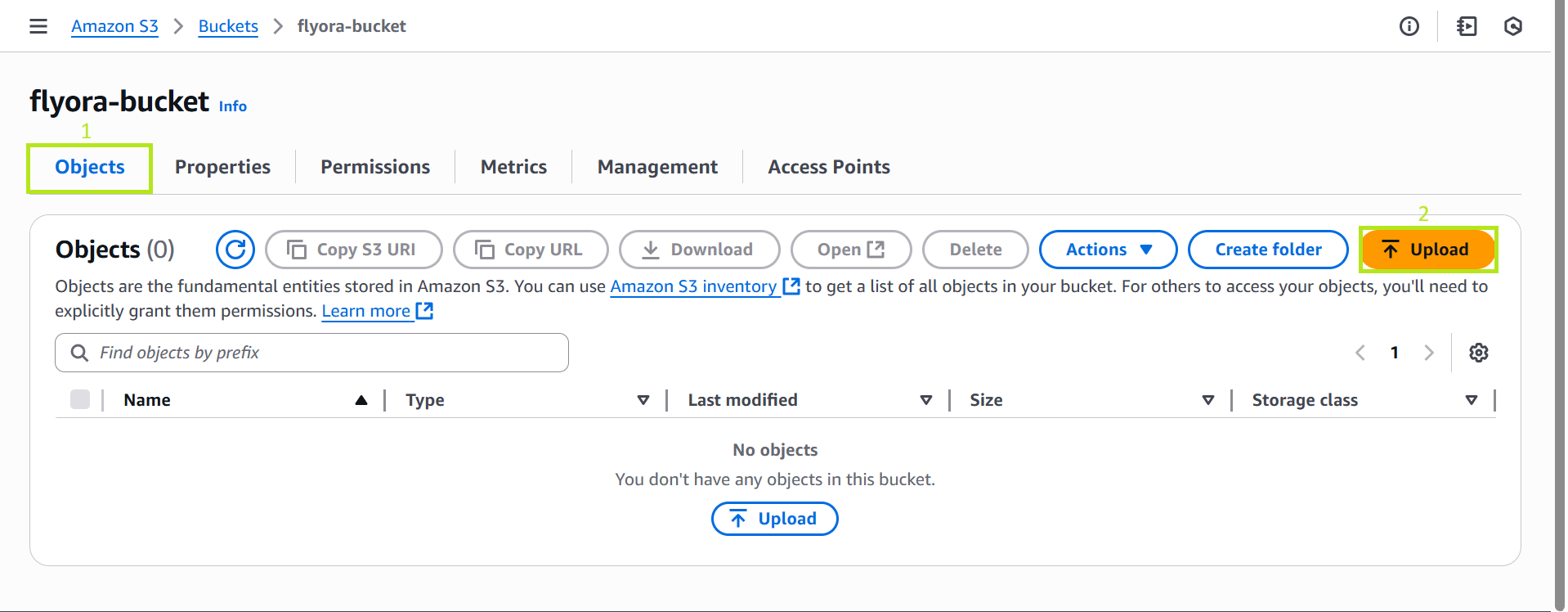
In the newly created Bucket:
- Go to the Objects tab → click Upload.
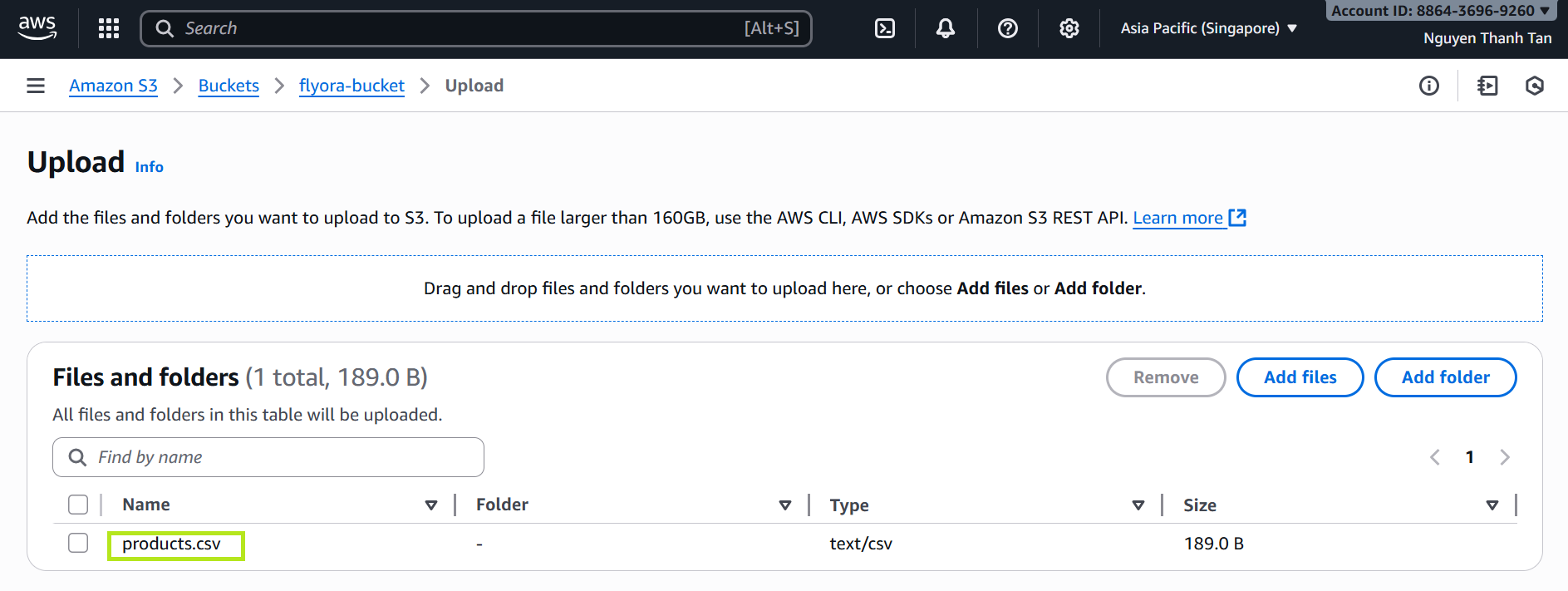
- Extract file zip.
- Drag and drop the files, then click Upload.
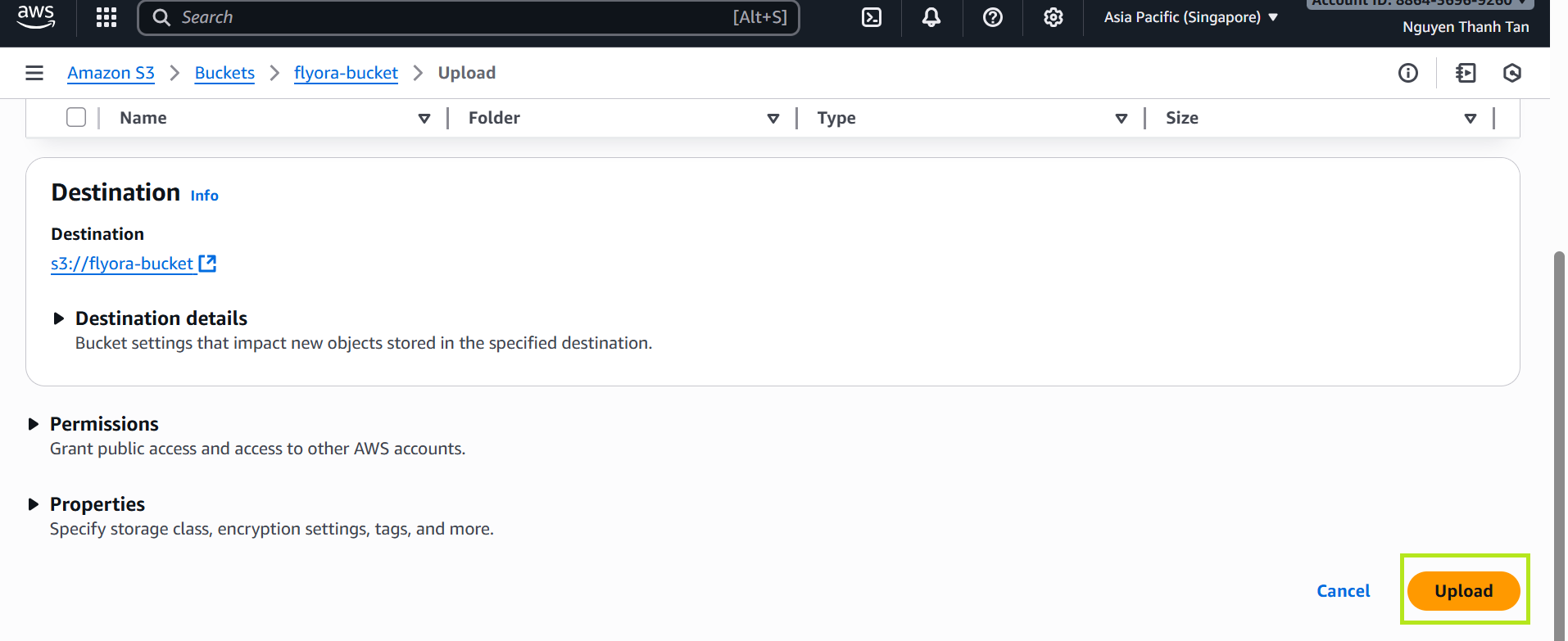
[!TIP] After uploading, please wait about 3–5 minutes for the Lambda function to import the data.
- Access the DynamoDB Service
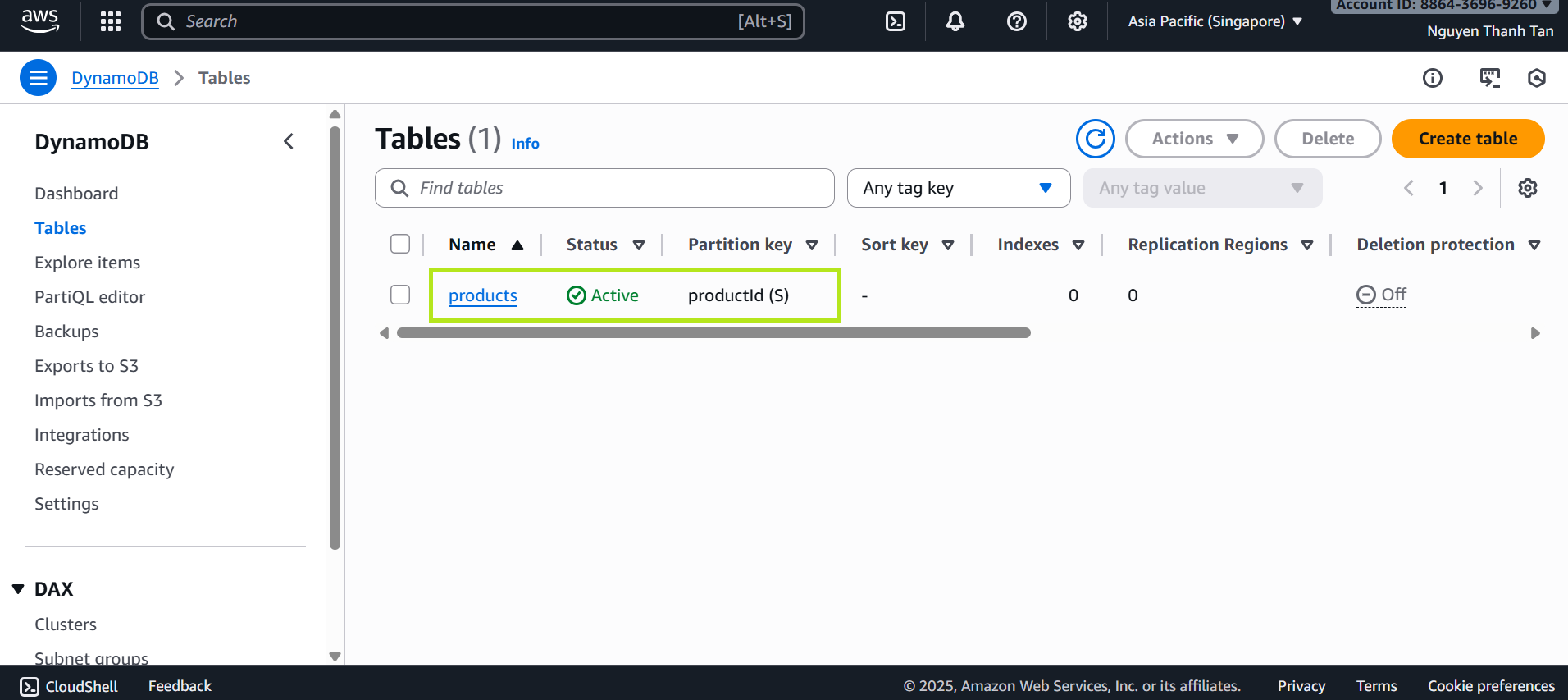
- Go to AWS Management Console → search for DynamoDB.
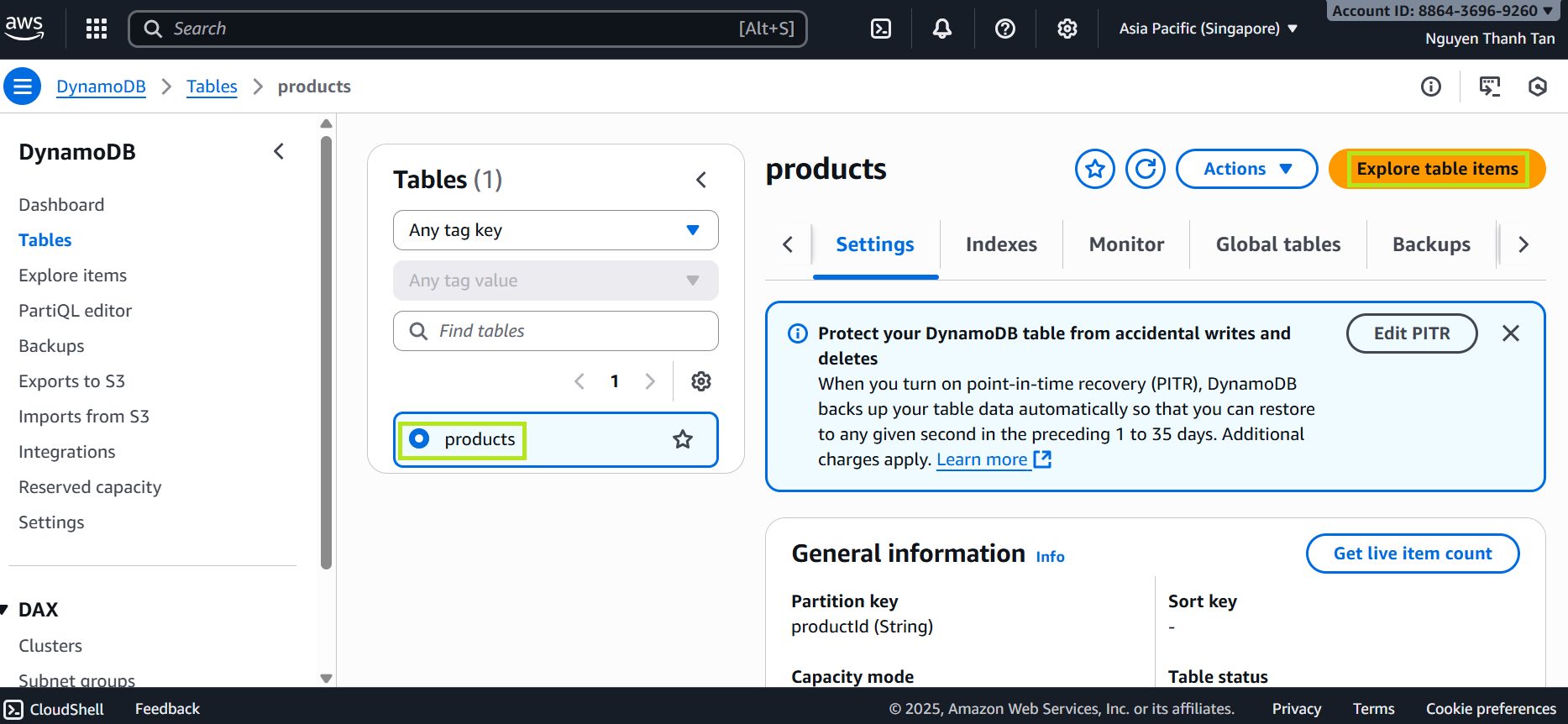
- Select Tables → click on the
productstable.
- View the Data
- Open the Explore items tab.
- Check the list of products that have been imported.
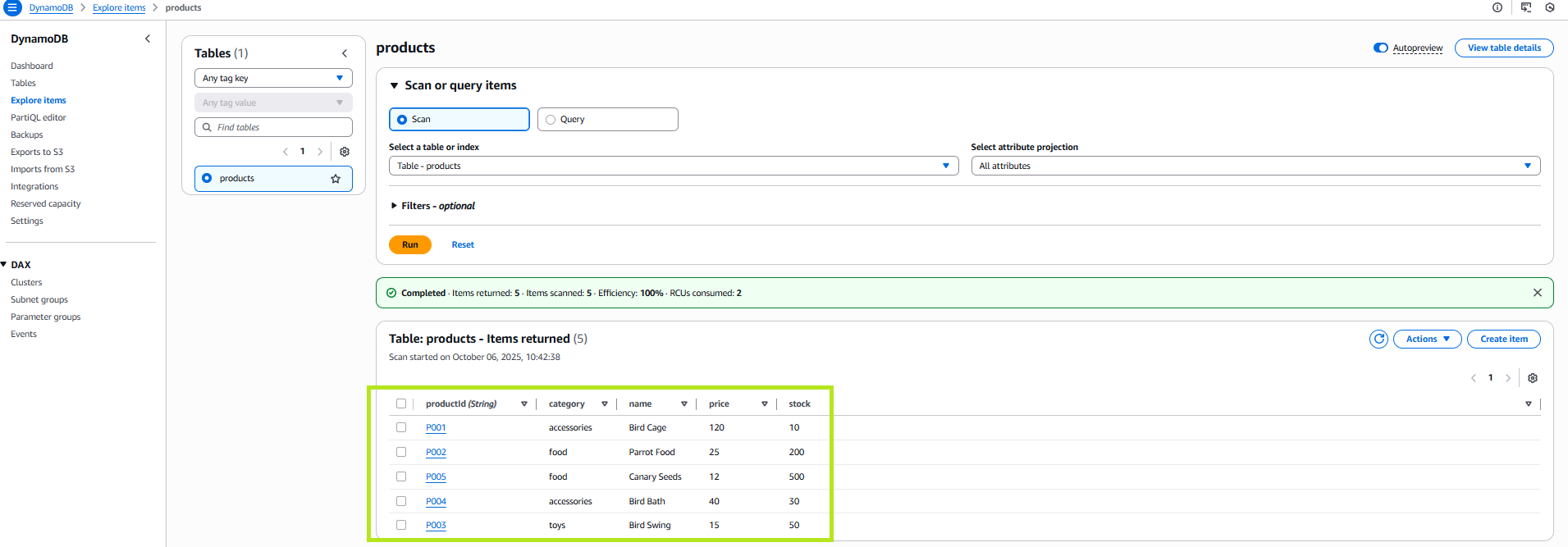
If you don’t see any data, please check the following:
- The DynamoDB table name must match the CSV file name.
- The CSV file must have a valid header.
- The Lambda function must have sufficient permissions to access both S3 and DynamoDB.