Create API Gateway and Integrate with Lambda
Objective
Connect AWS API Gateway with a Lambda Function to create a RESTful endpoint that allows accessing data stored in DynamoDB.
Implementation Steps
1. Access API Gateway
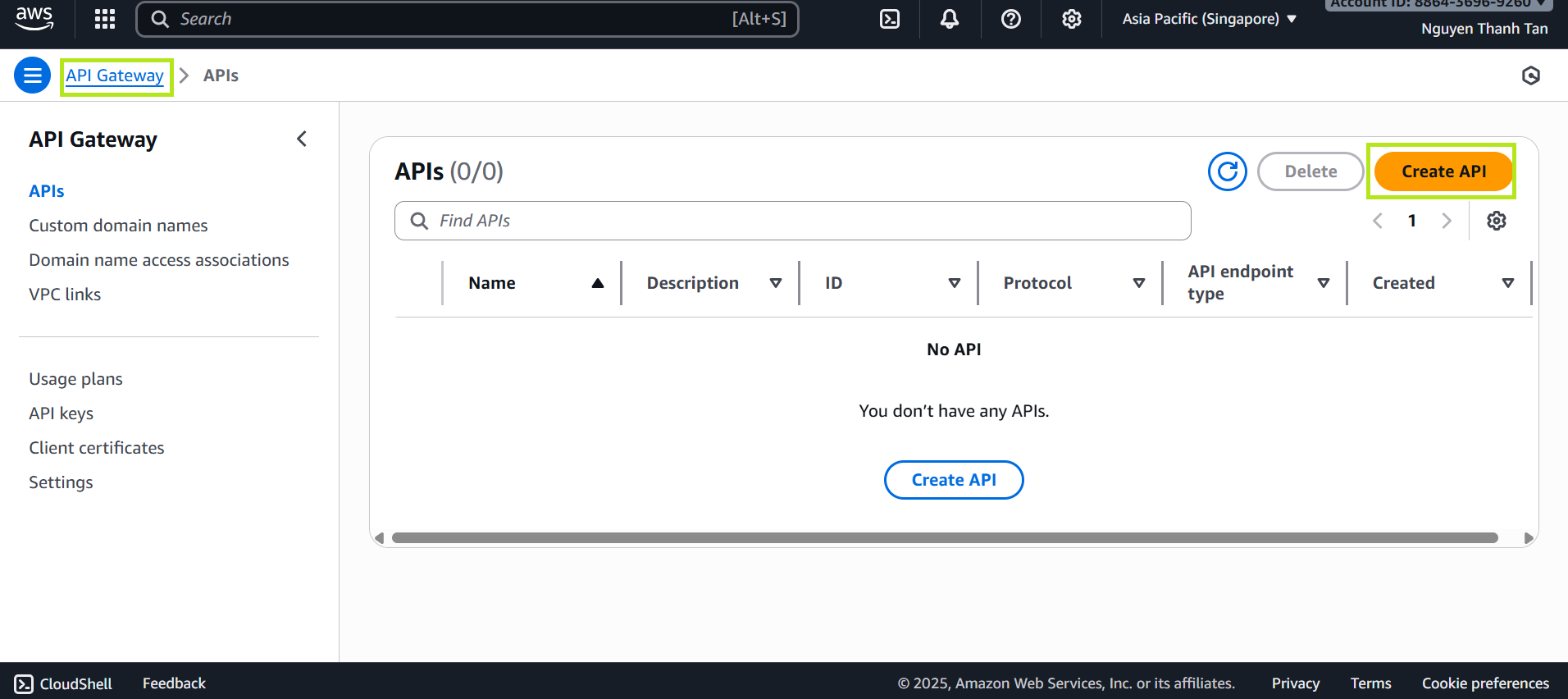
- Go to AWS Console → API Gateway
- Click Create API
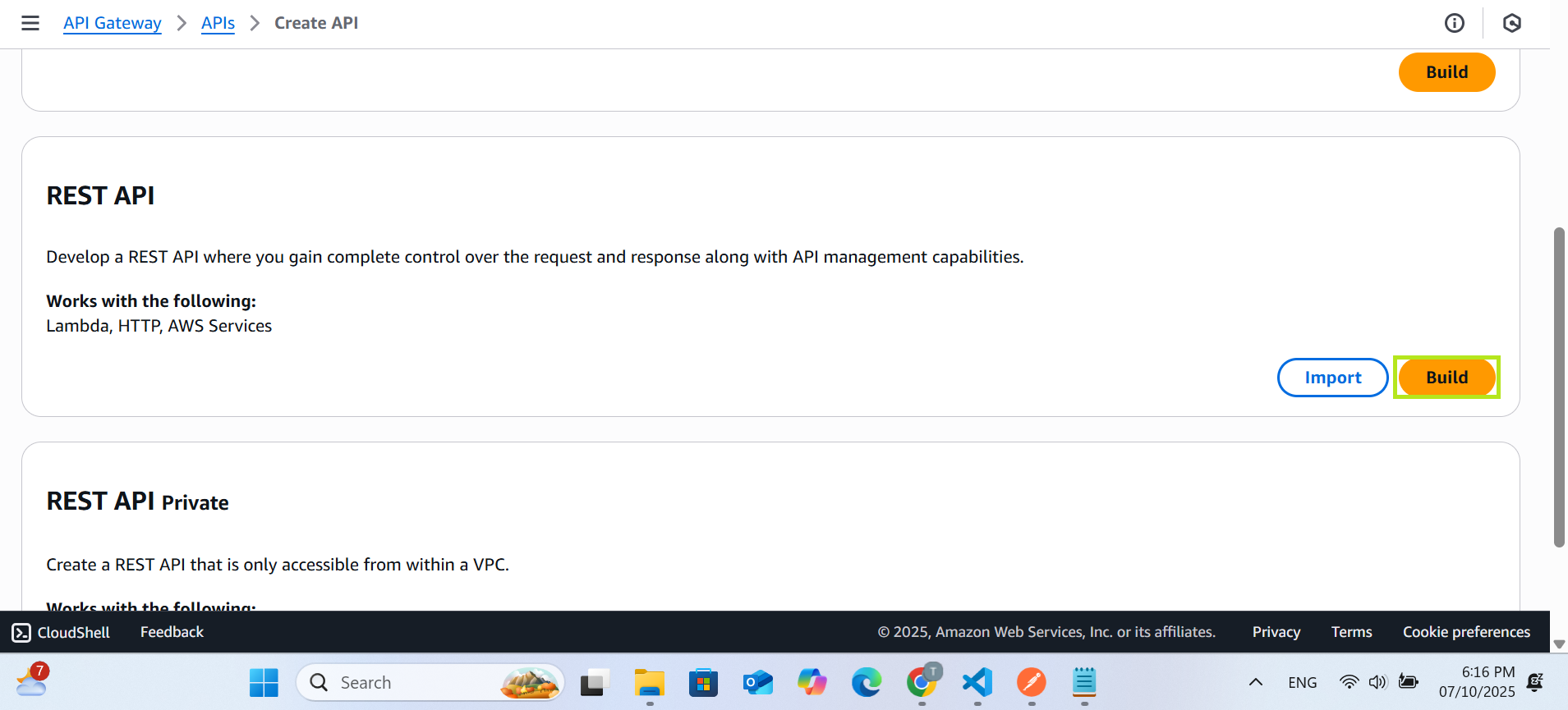
- Select REST API (Build)
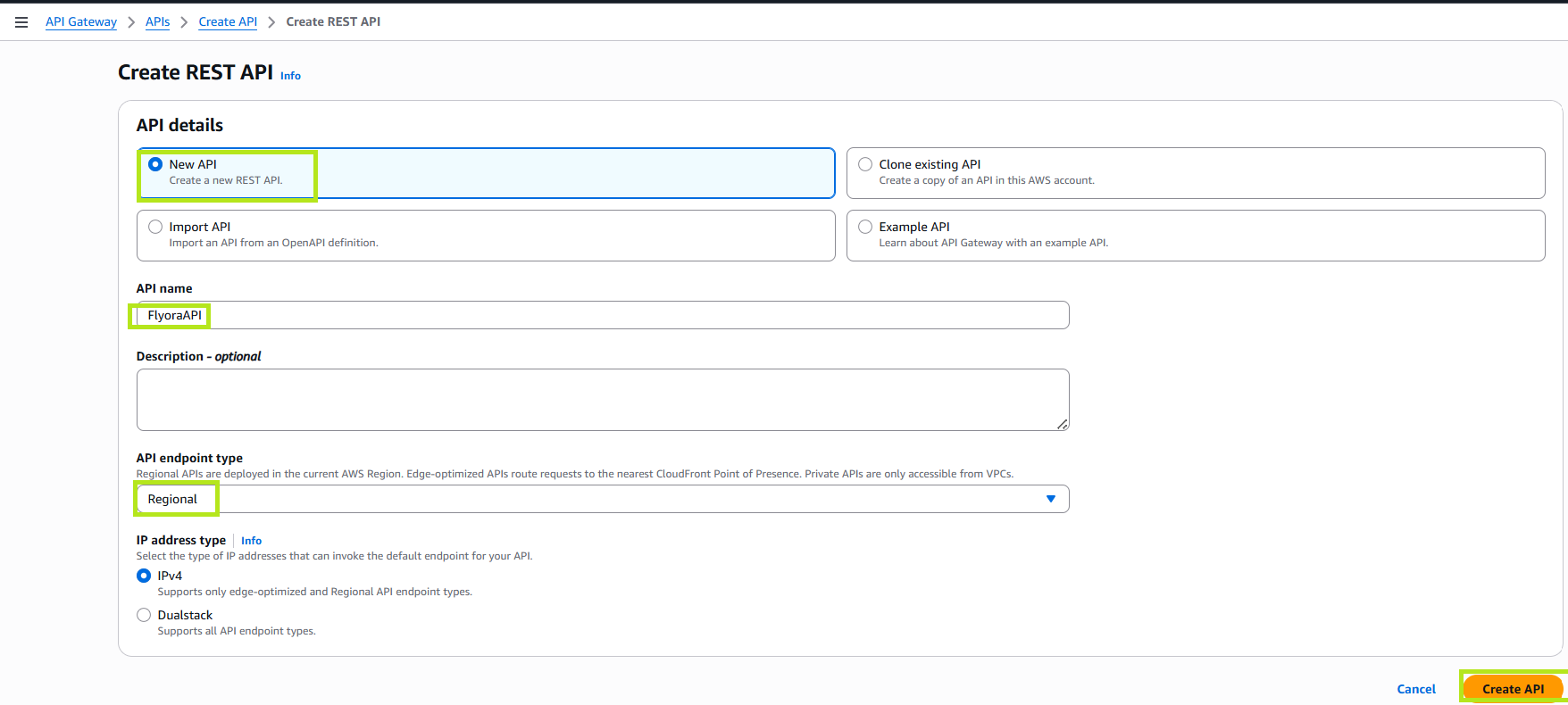
- Configure:
- Create new API: New API
- API name:
FlyoraAPI - Endpoint type: Regional
- Click Create API
2. Create Resources and Methods
- In the sidebar, select
Actions → Create Resource
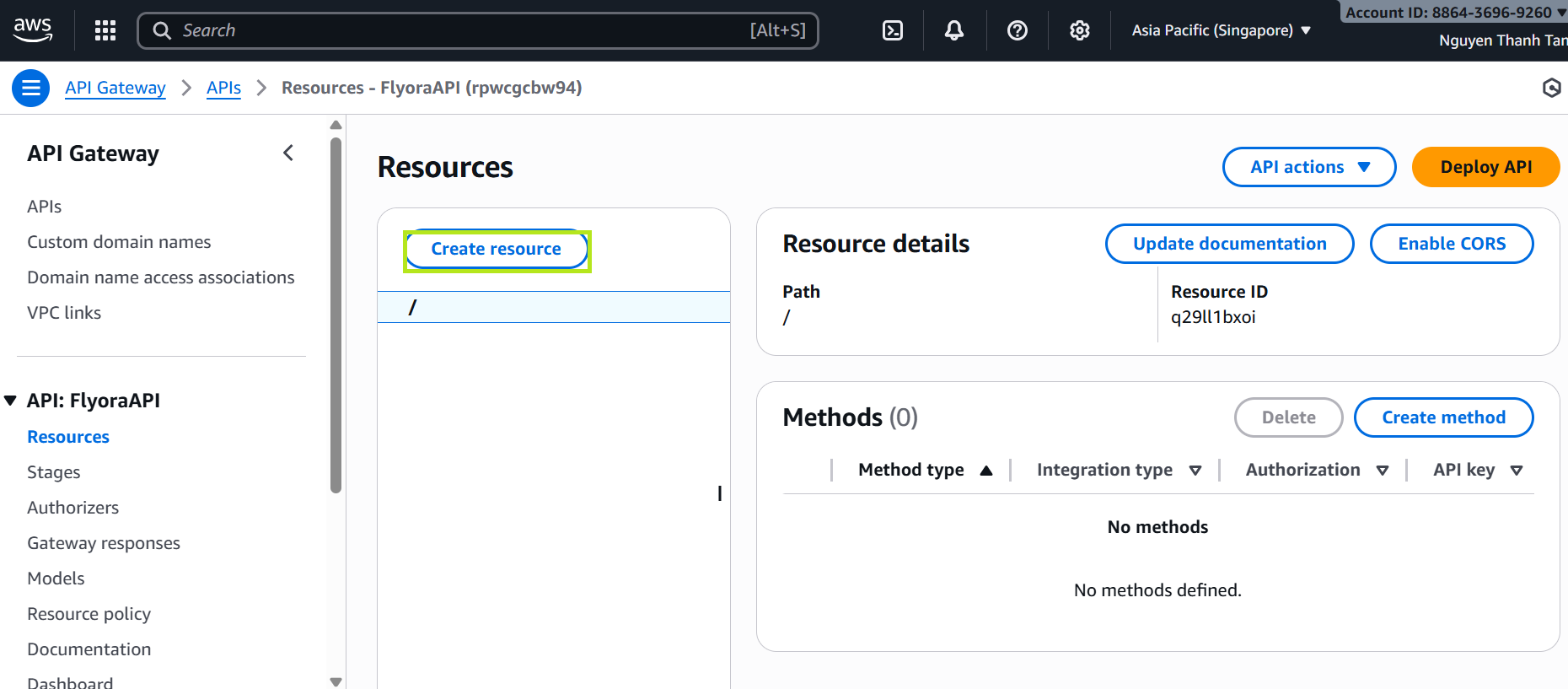
- Resource Name:
api - Click Create Resource
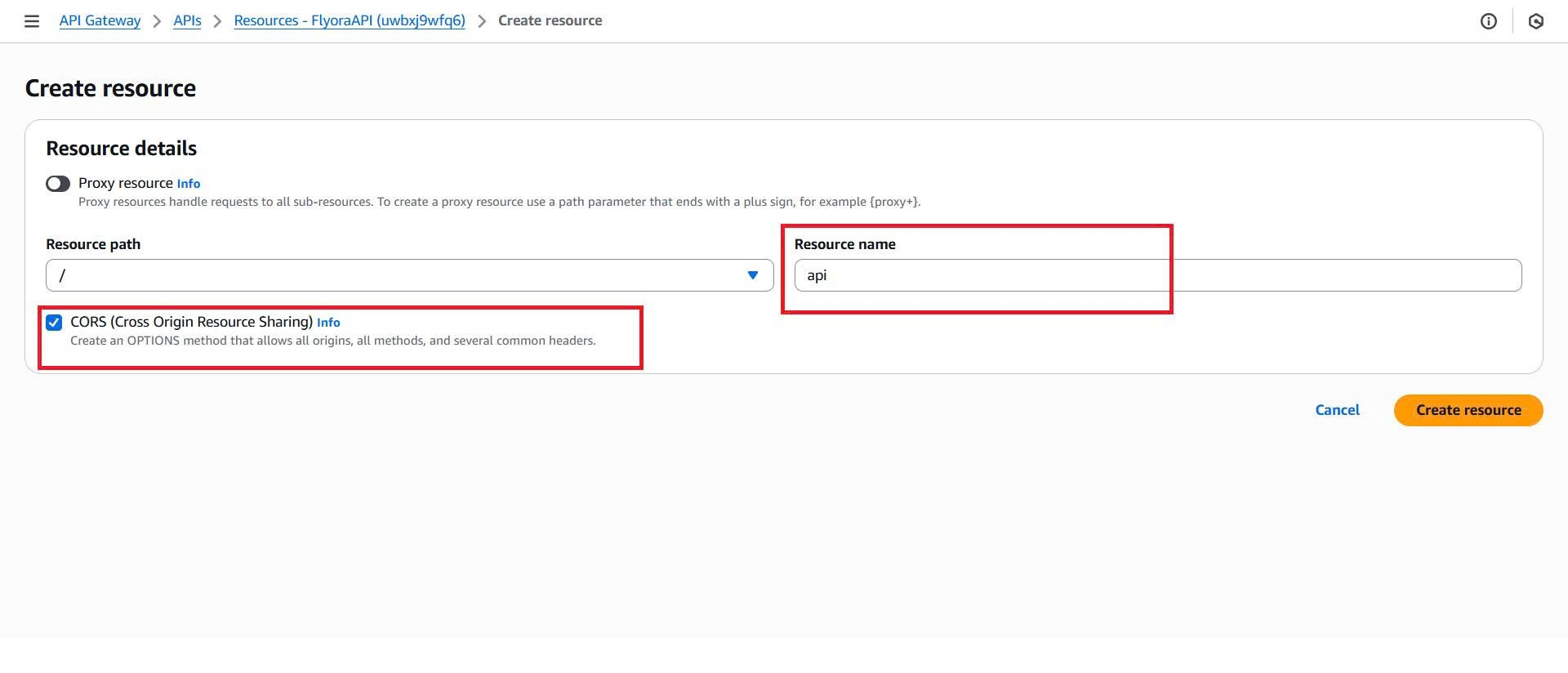
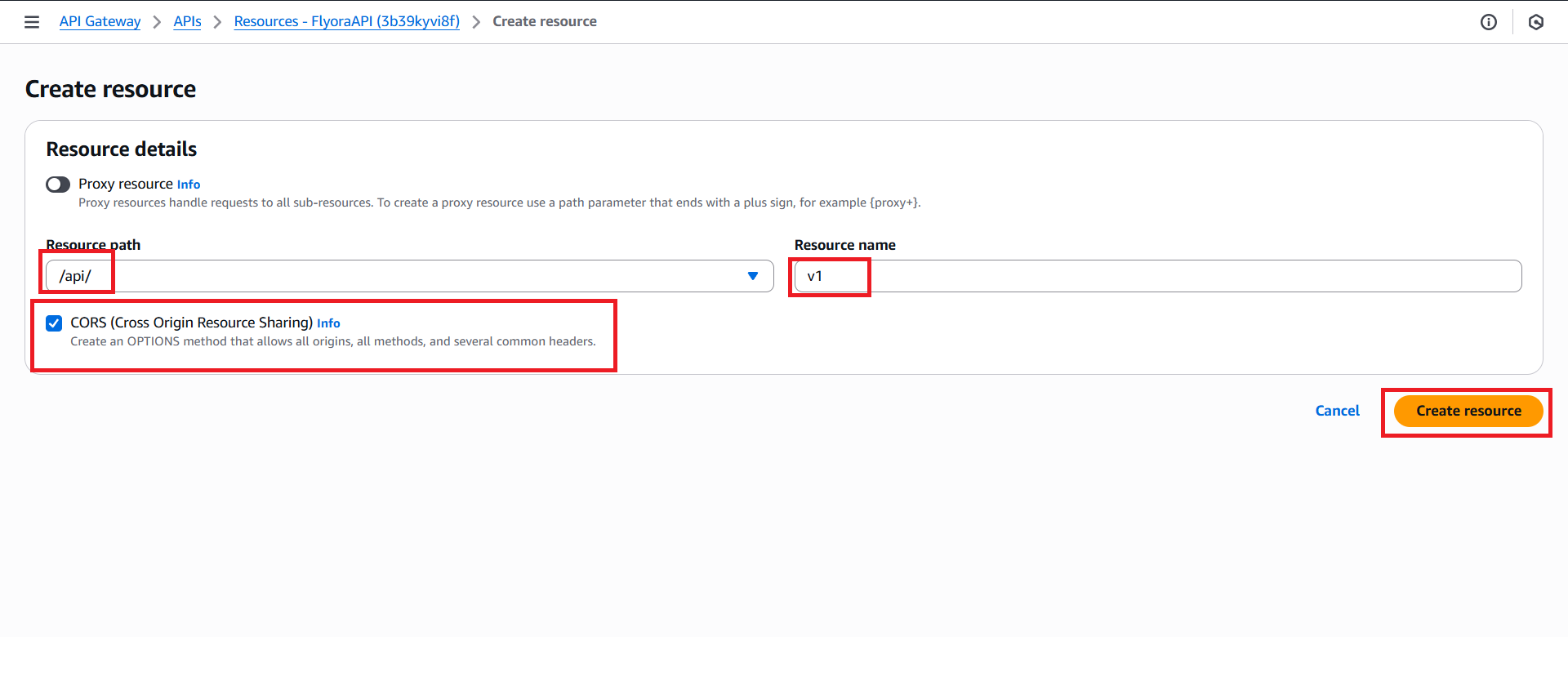
- Select /api → Actions → Create Resource
- Configure the resource:
- Resource path: /api/
- Resource Name:
v1 - Click Create Resource
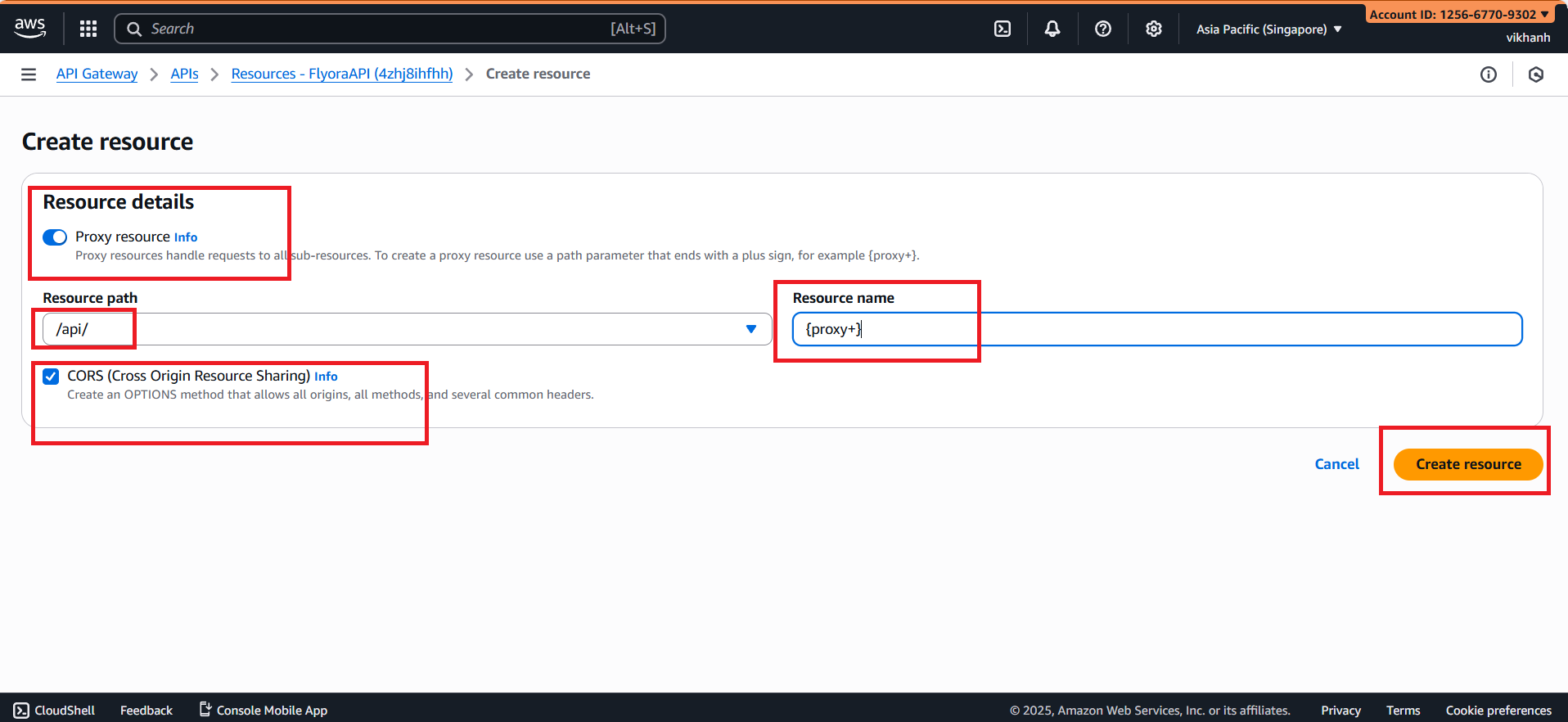
- Create a proxy resource under
/api
- Check Proxy resource
- Resource path: /api/
- Resource Name:
{proxy+} - Click Create Resource
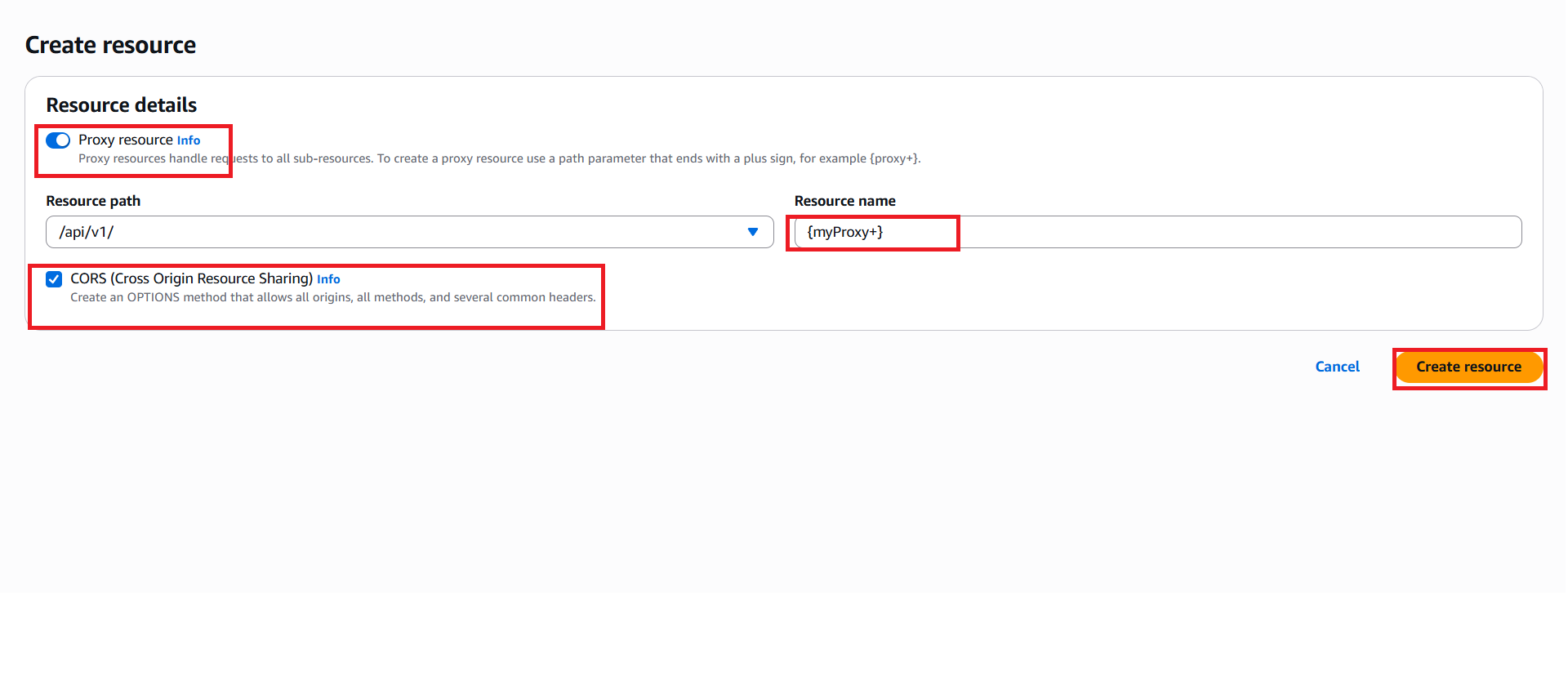
- Select /v1 → Actions → Create Resource
Configure:
- Check Proxy resource
- Resource path: /api/v1/
- Resource Name:
{myProxy+} - Click Create Resource
- Enable CORS for all resources
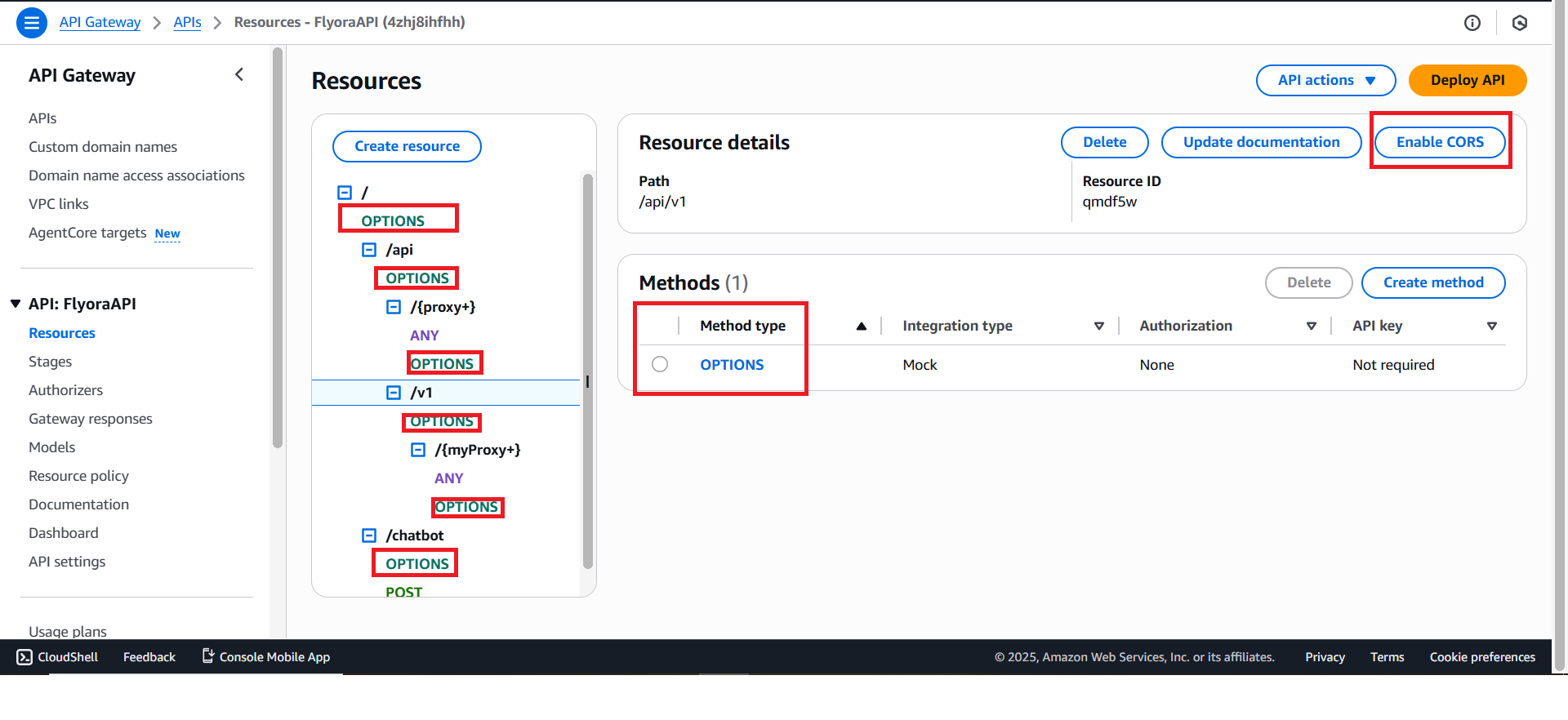
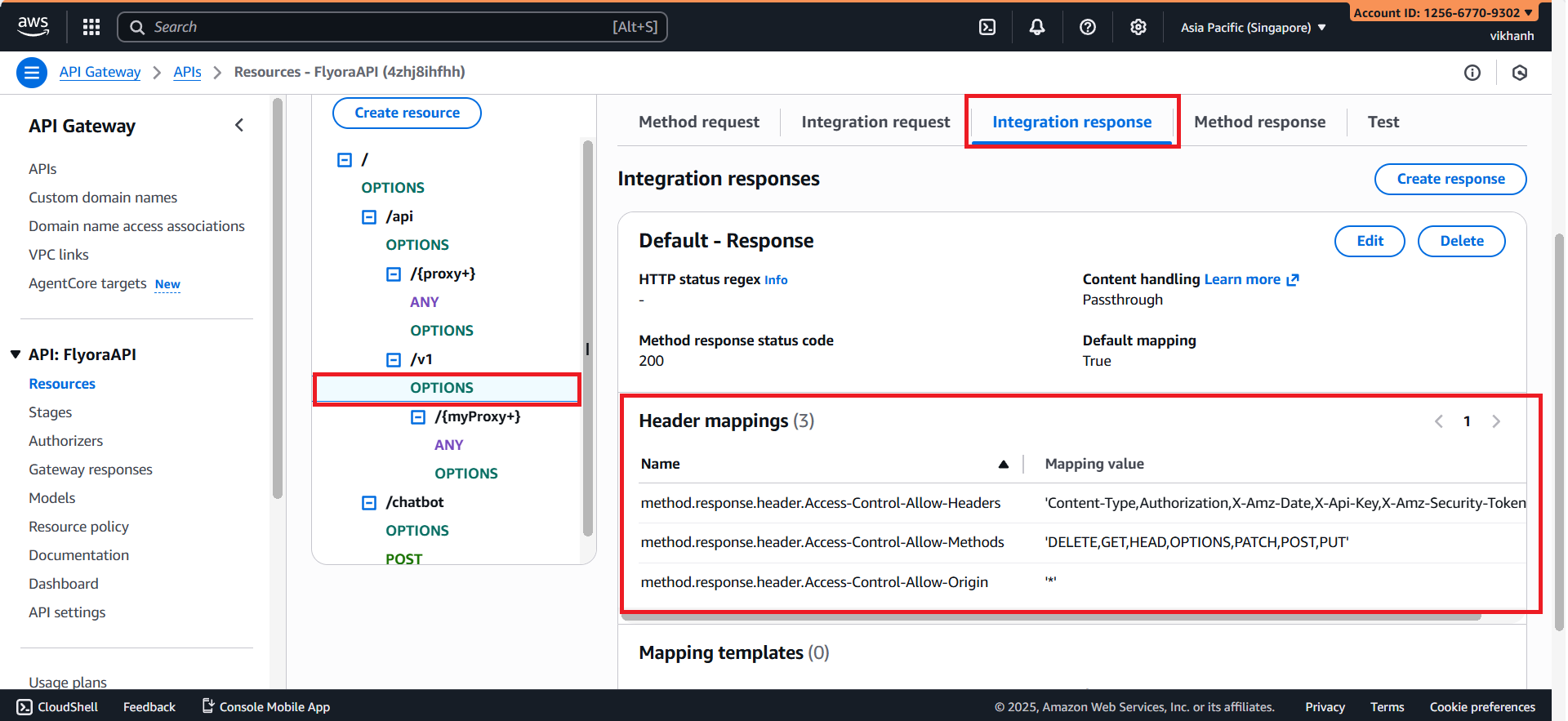
Under OPTIONS → Integration response → Header Mappings, ensure the headers below exist:
- Access-Control-Allow-Origin:
* - Access-Control-Allow-Headers:
Content-Type,X-Amz-Date,Authorization,X-Api-Key,X-Amz-Security-Token - Access-Control-Allow-Methods:
DELETE,GET,HEAD,OPTIONS,PATCH,POST,PUT
3. Integrate with Lambda
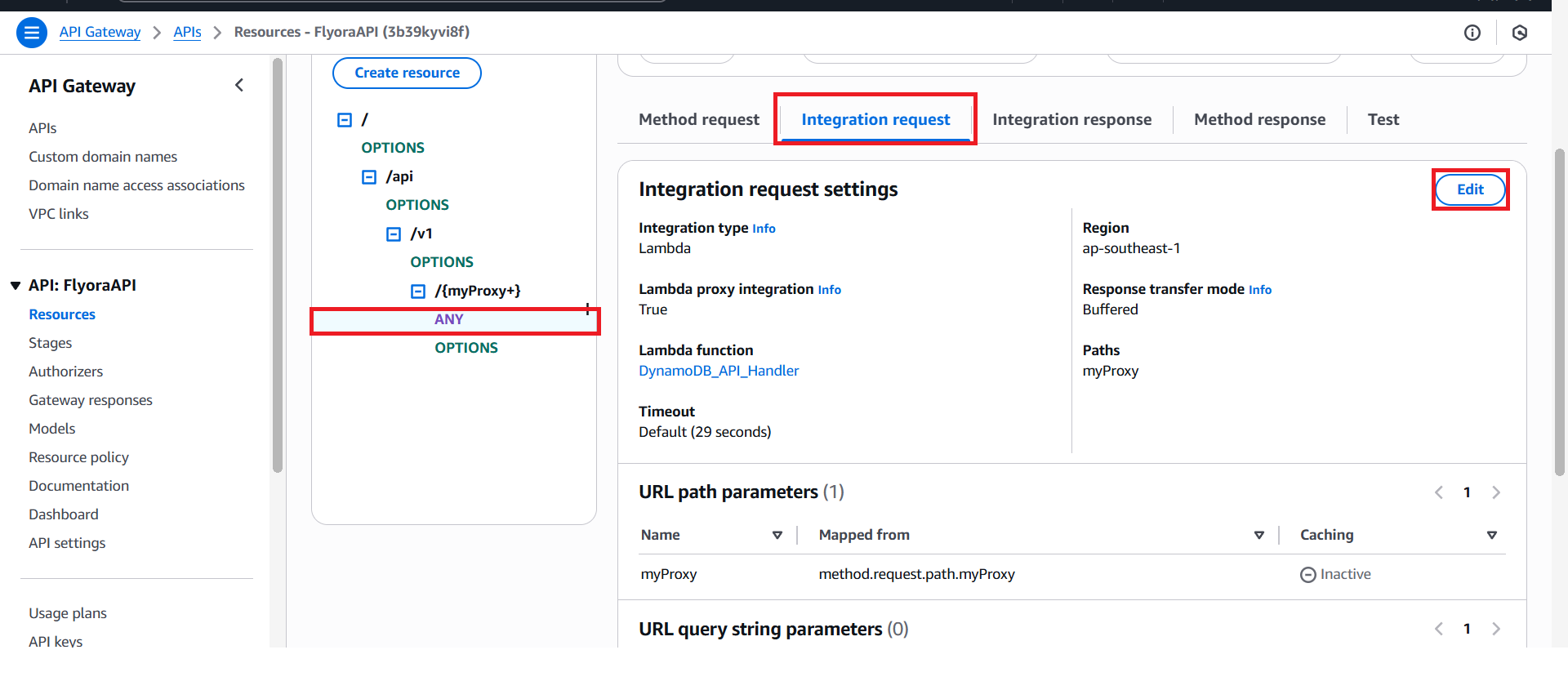
- After creating /api/v1/{myProxy+}, the ANY method appears:
- Select ANY → Integration request → Edit
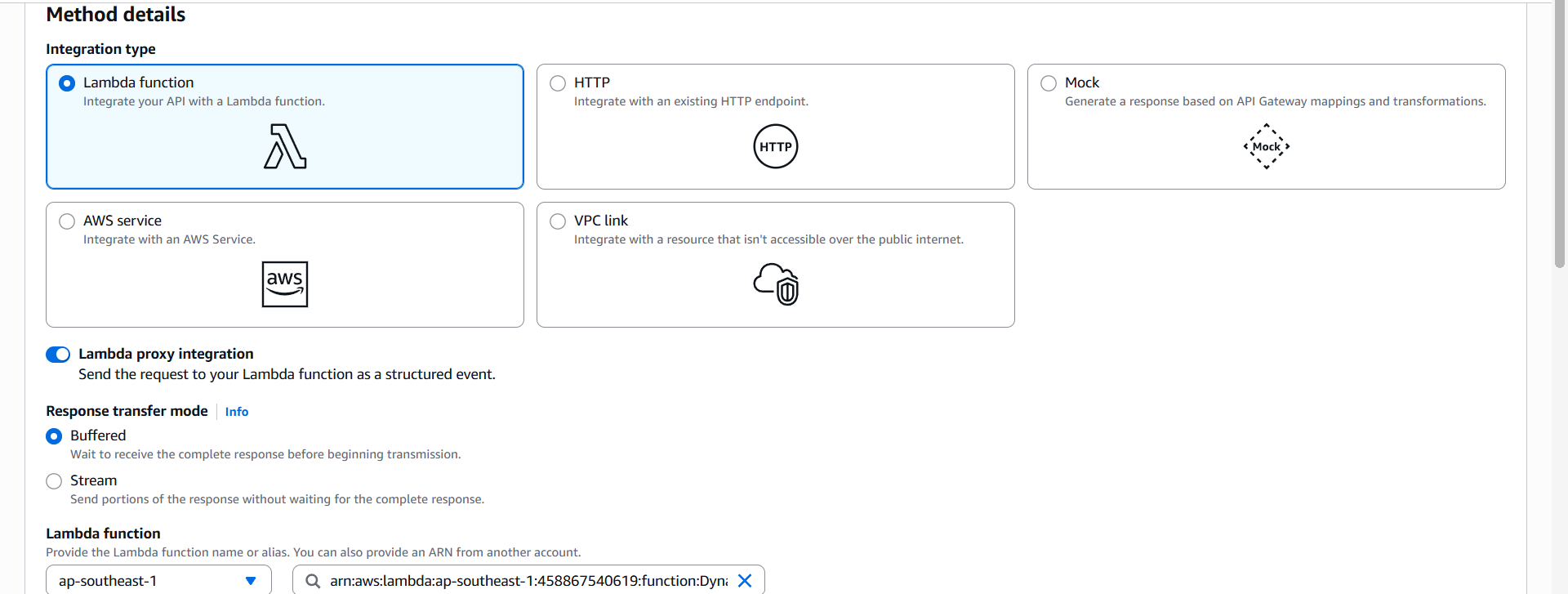
- Attach Lambda:
- Integration type: Lambda Function
- Check Lambda proxy integration
- Lambda Region:
ap-southeast-1(Singapore) - Lambda Function: select your
Lambda_API_Handler
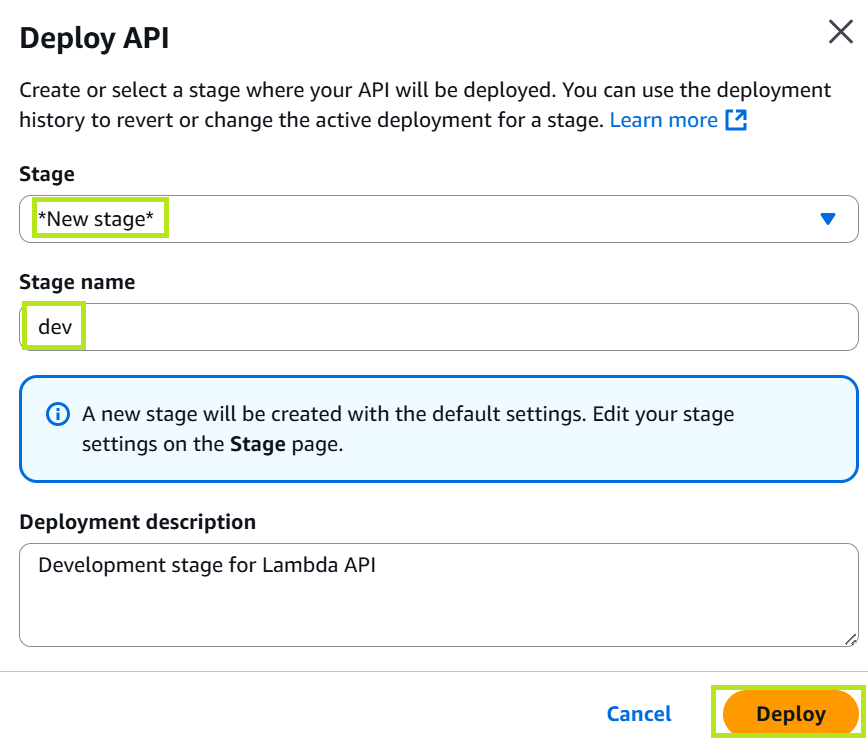
4. Deploy API
- Select Actions → Deploy API
- Deployment stage: New stage
- Stage name:
dev - Description: Development stage for Lambda API
- Stage name:
- Click Deploy
After deployment, you will receive an Invoke URL in the format:
https://<api_id>.execute-api.ap-southeast-1.amazonaws.com/dev