Testing API using Postman
Objective
Test the API Gateway REST endpoint integrated with the Lambda Function to verify the data operations performed on DynamoDB.
Download and install Postman before starting this section.
1. Update Authorization Settings
- Go to AWS Console → API Gateway
- Select FlyoraAPI
- Navigate to
/api/v1/{myProxy+} → ANY → Method request → Edit
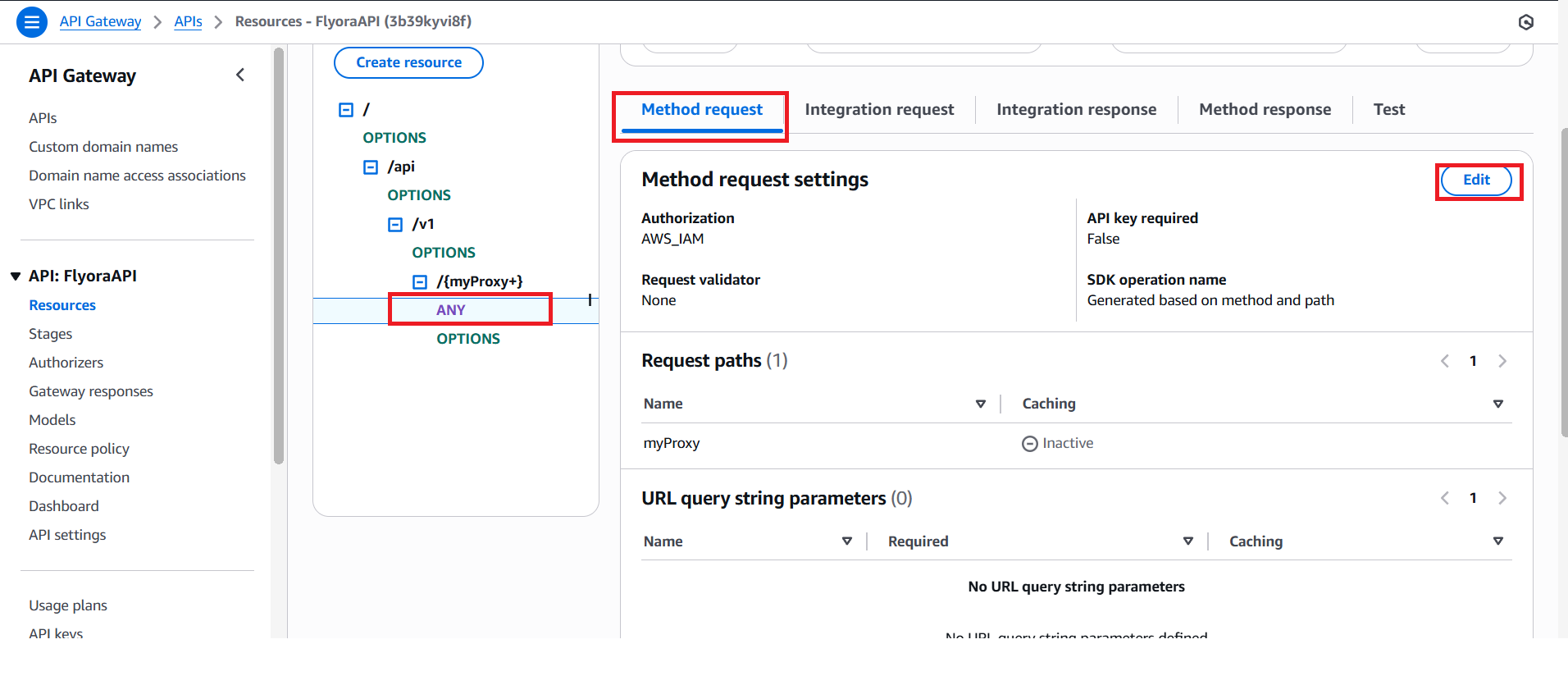
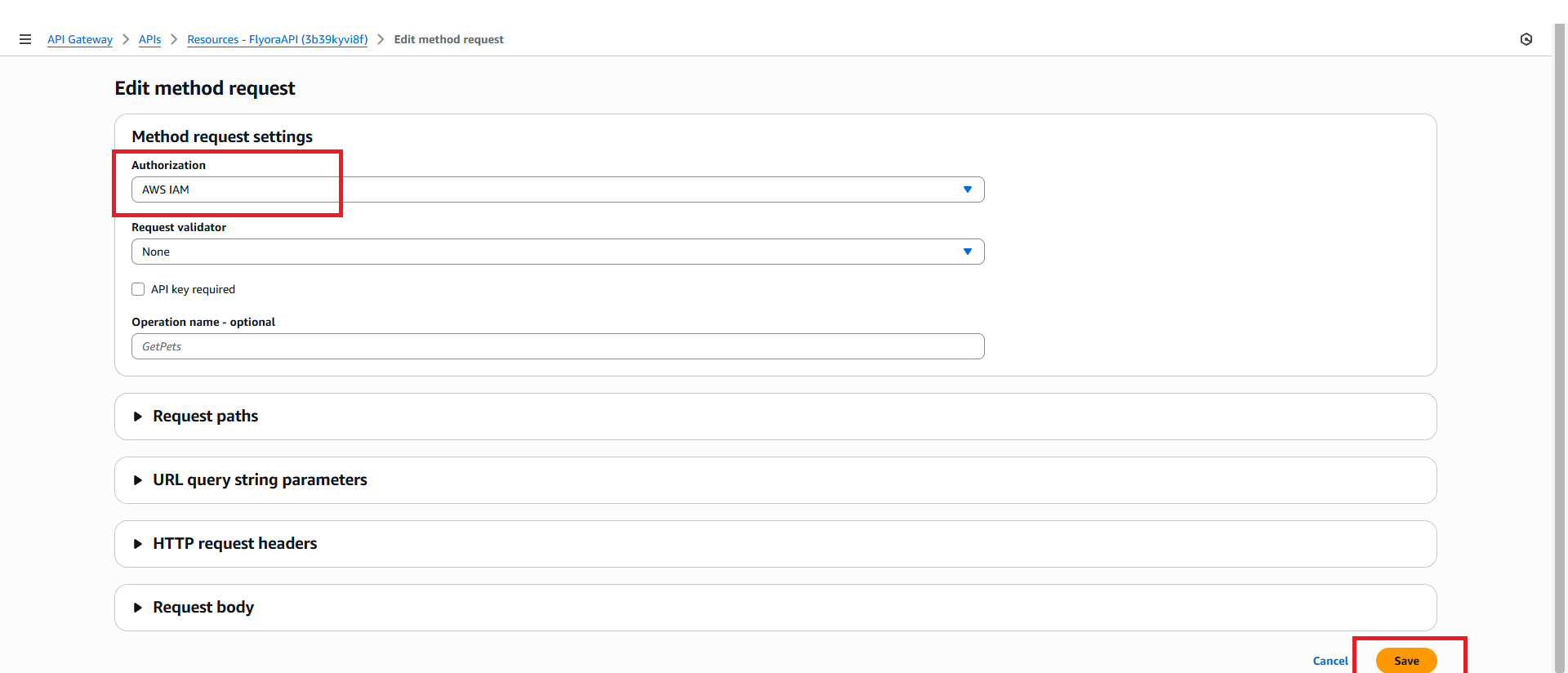
- Set Authorization to AWS_IAM(Note: Only enable when testing with Postman, then remember to turn it off afterwards)
2. Create an Access Key
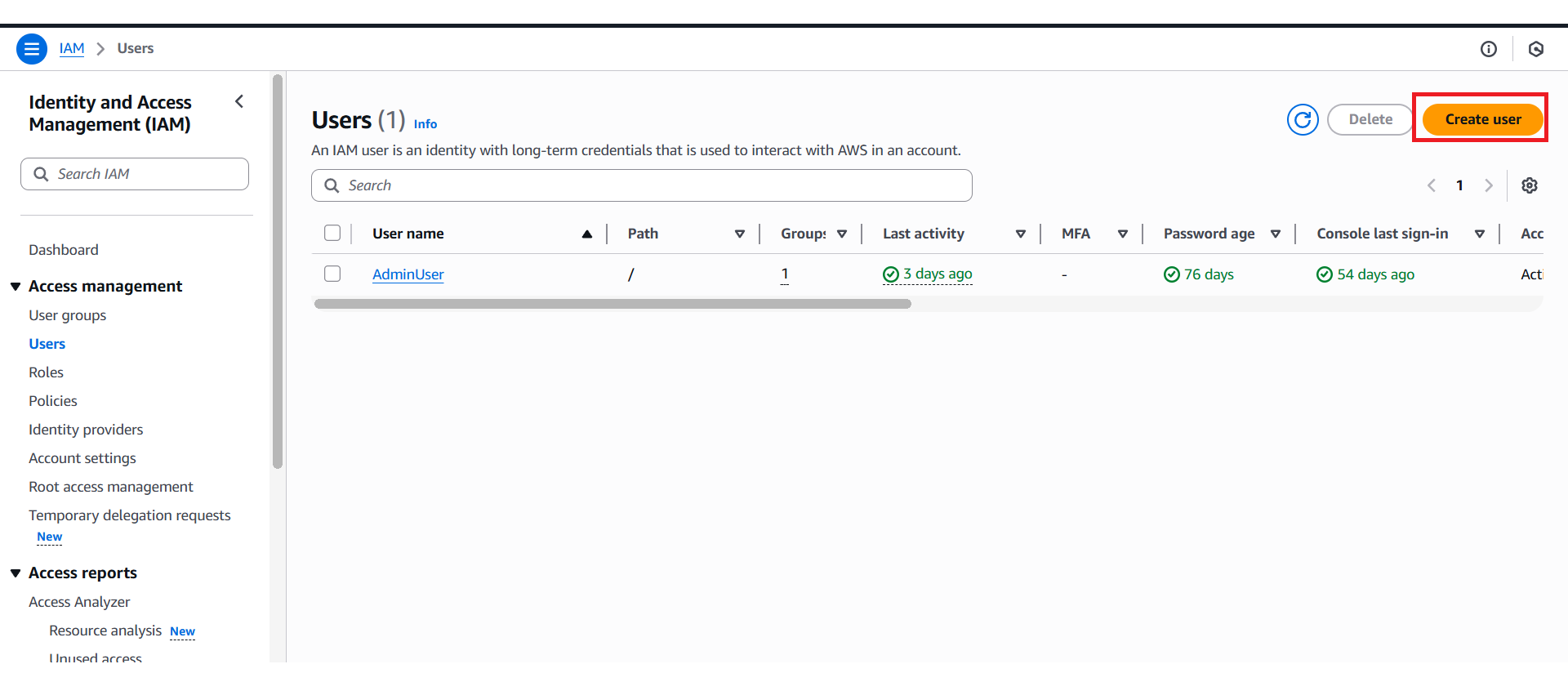
- Go to AWS Console → IAM → Users
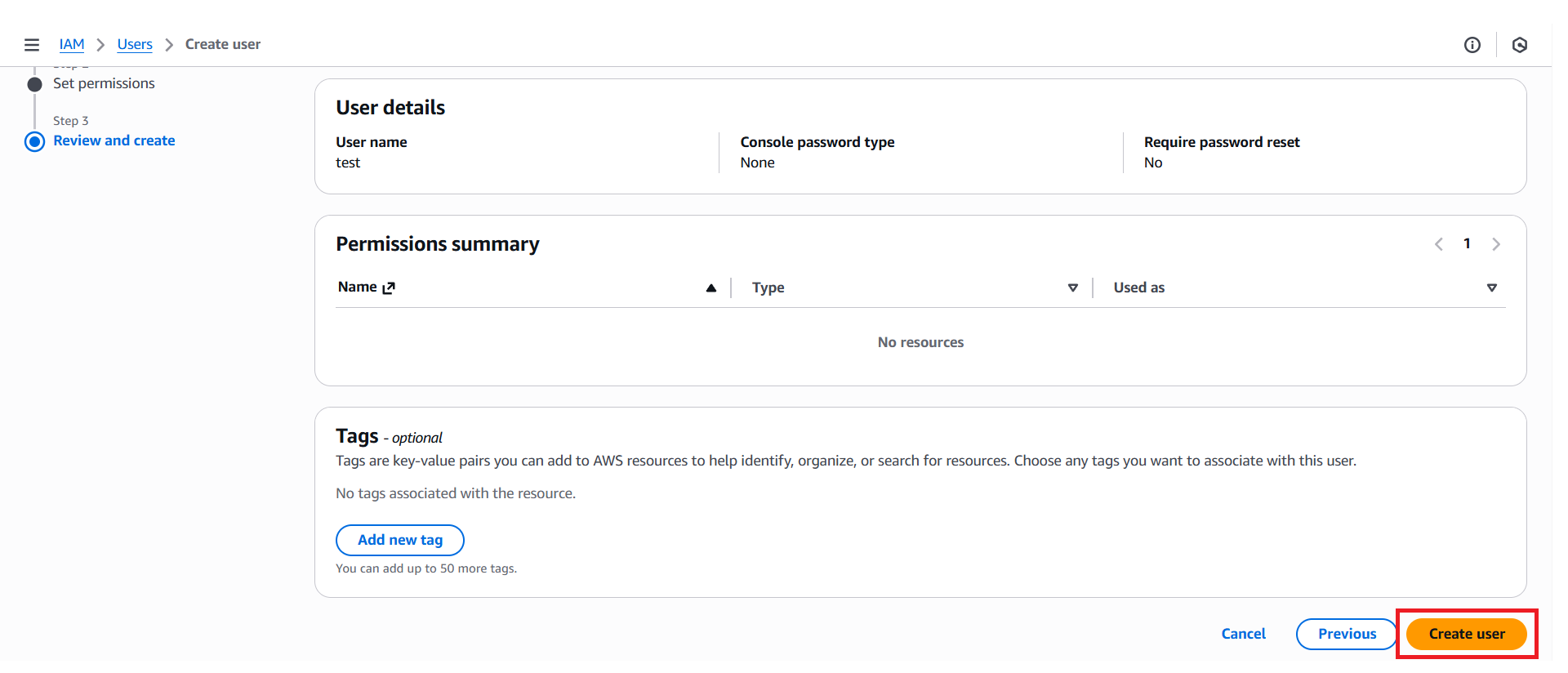
- Click Create User
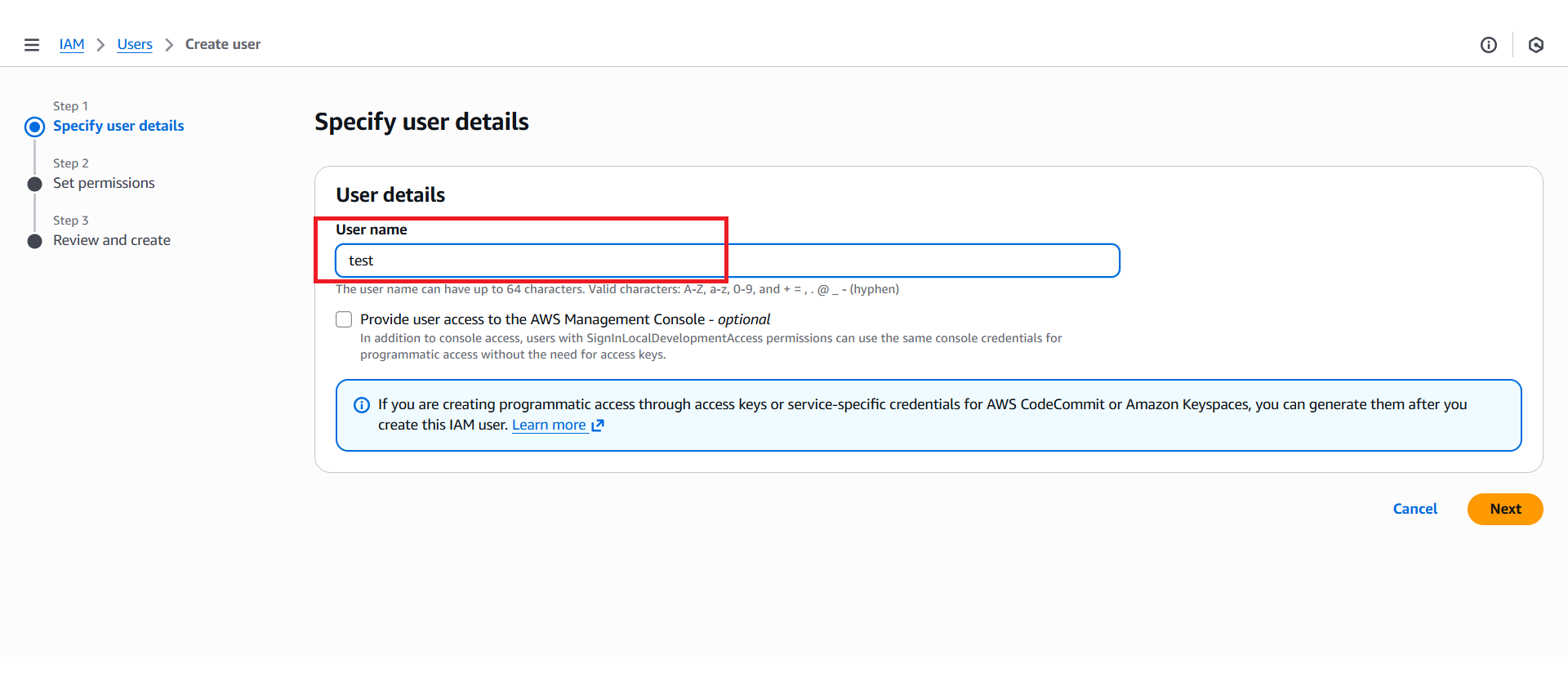
- Set username: test
- Confirm user creation
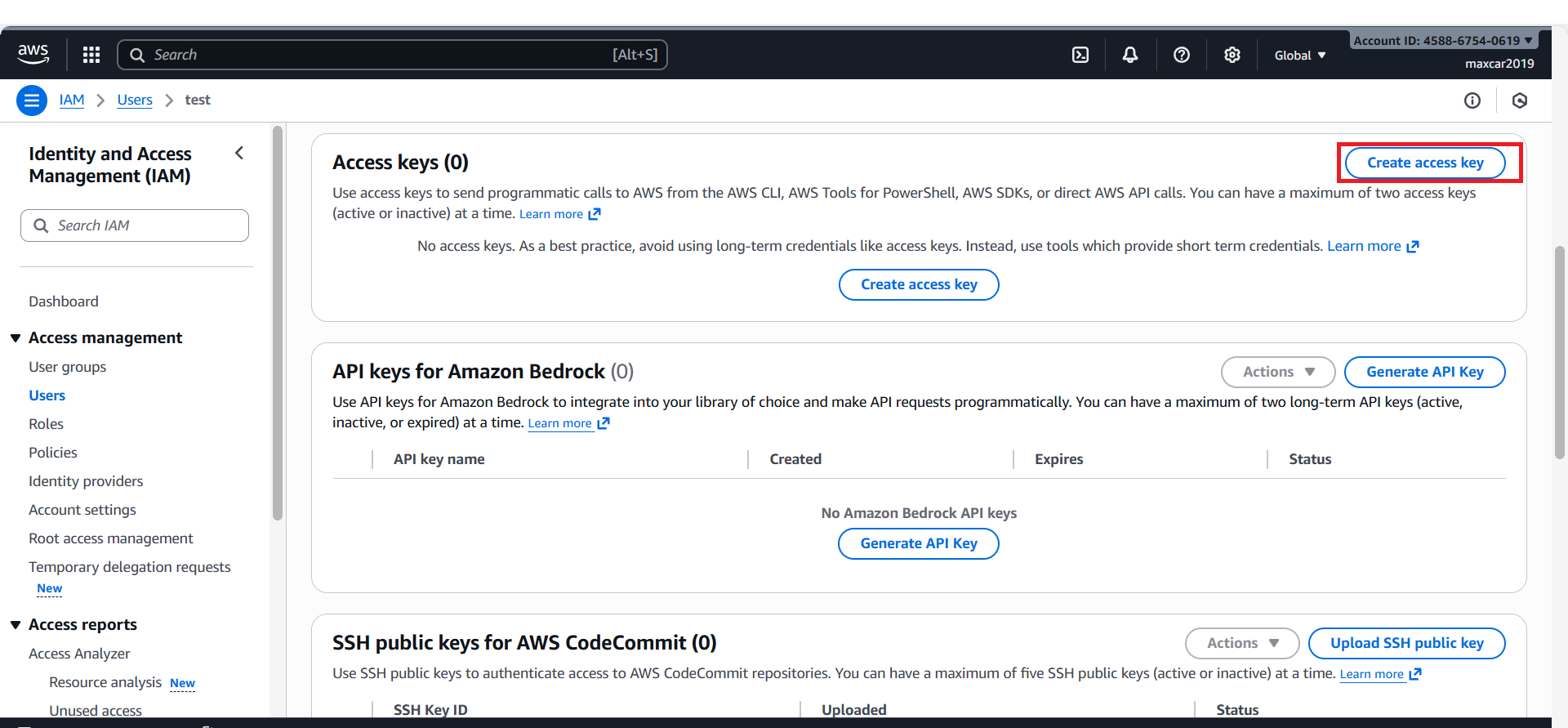
- Open the test user → Security credentials → Create access key
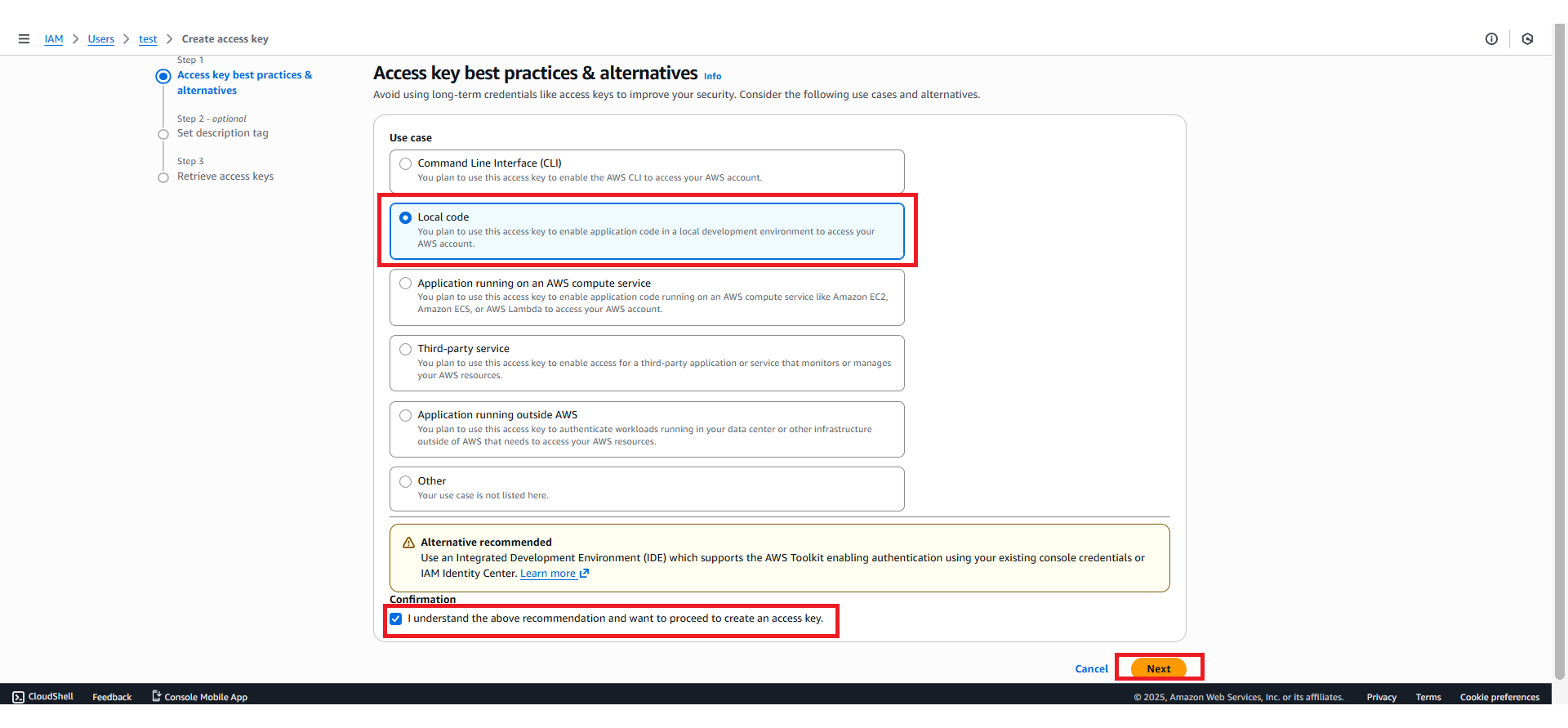
- Choose Local code
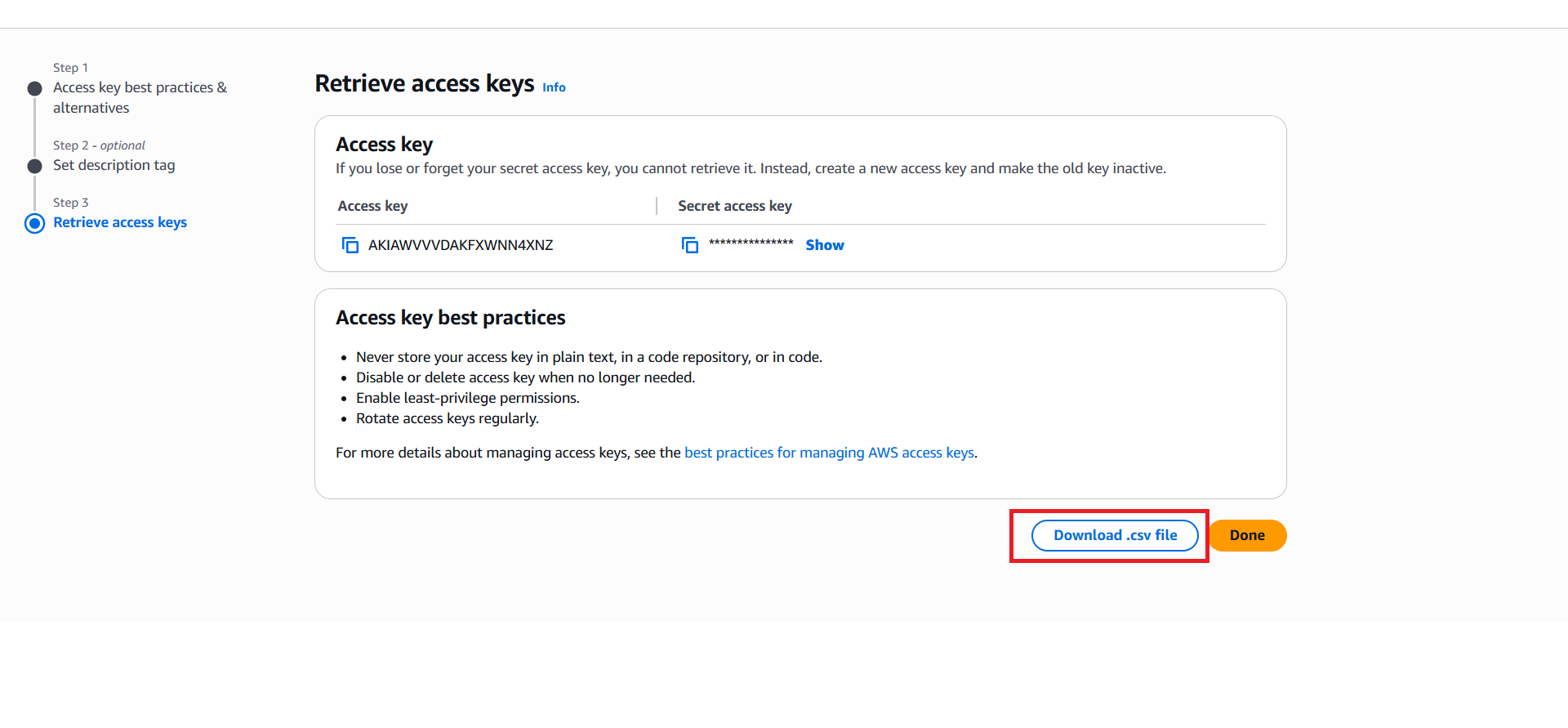
- Copy the Access key and Secret access key
Testing GET Request
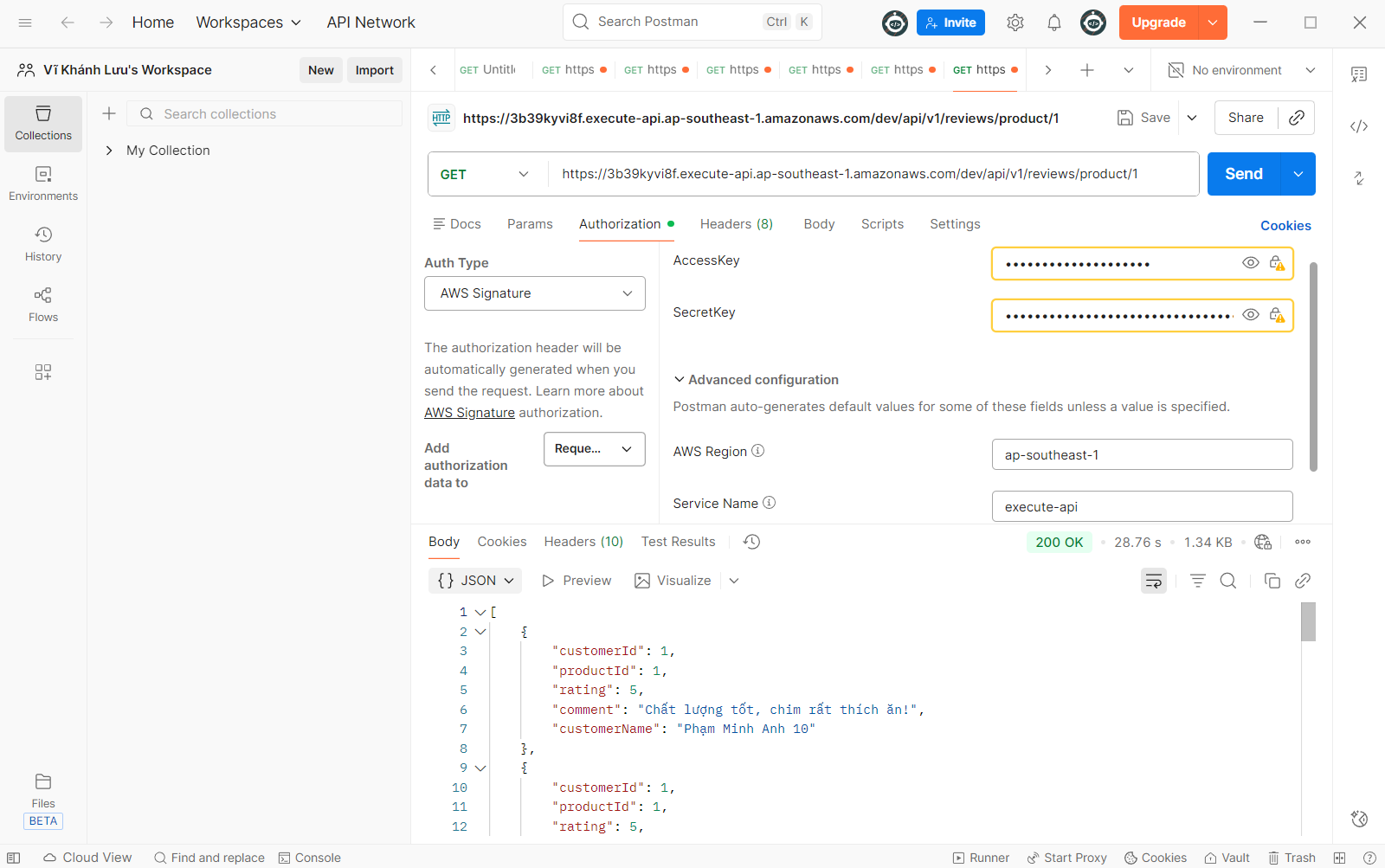
Open Postman
Choose GET
Enter URL:
https://<api_id>.execute-api.ap-southeast-1.amazonaws.com/dev/api/v1/reviews/product/1Headers tab:
- Key:
Content-Type| Value:application/json
- Key:
Authorization tab:
- Type: AWS Signature
- Enter AccessKey
- Enter SecretKey
- AWS Region:
ap-southeast-1 - Service Name:
execute-api
Click Send
Result: Returns the list of
Itemsfrom the reviews table.
Testing POST Request
Choose POST
URL:
https://<api_id>.execute-api.ap-southeast-1.amazonaws.com/dev/api/v1/reviews/submitBody → raw → JSON
{
  "customerId": 2,
  "rating": 4,
  "comment": "Chim ăn ngon và vui vẻ!",
  "customerName": "Nguyễn Văn B"
}
Click Send
Result: Inserts a new Item into the Review table.