Hosting website with S3
Step 1: Create an S3 Bucket
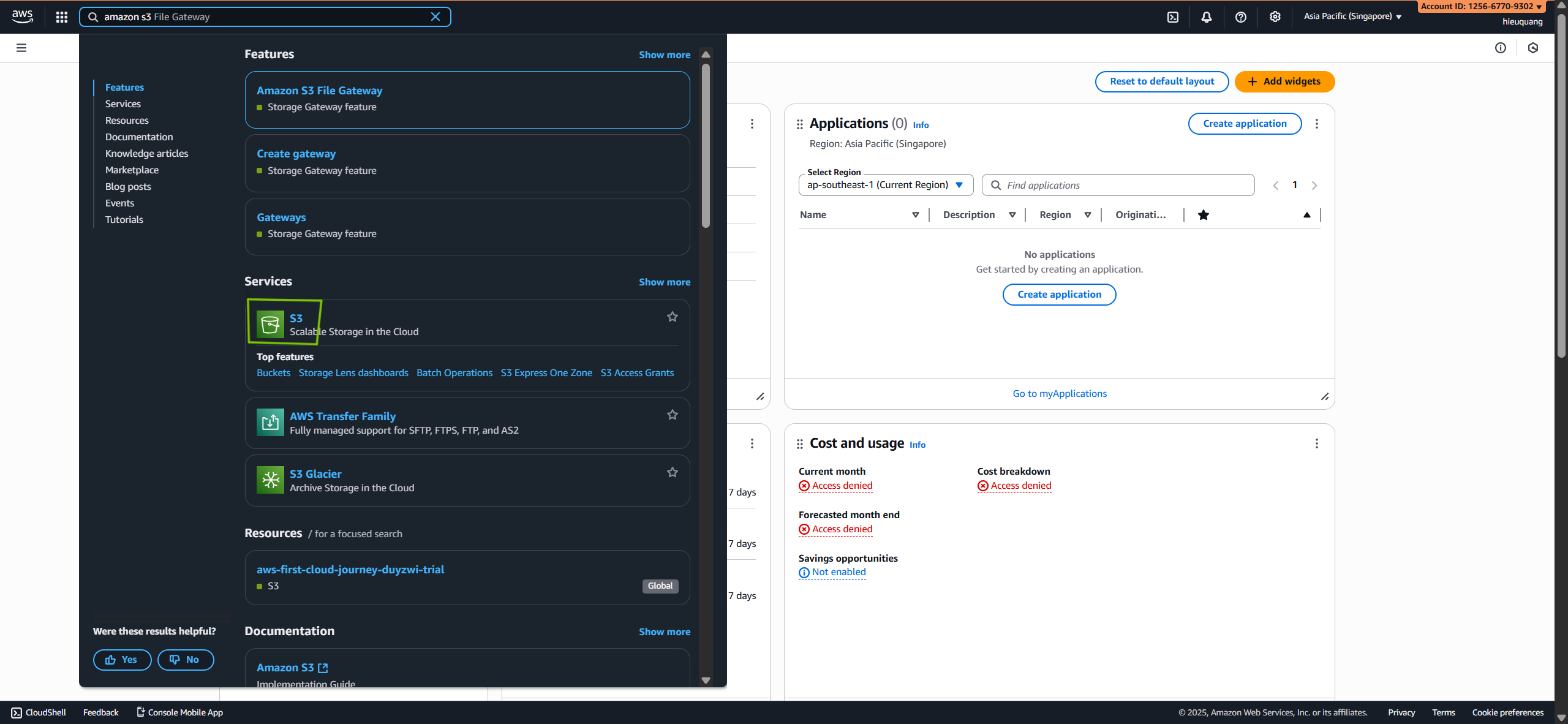
- Go to the S3 service.
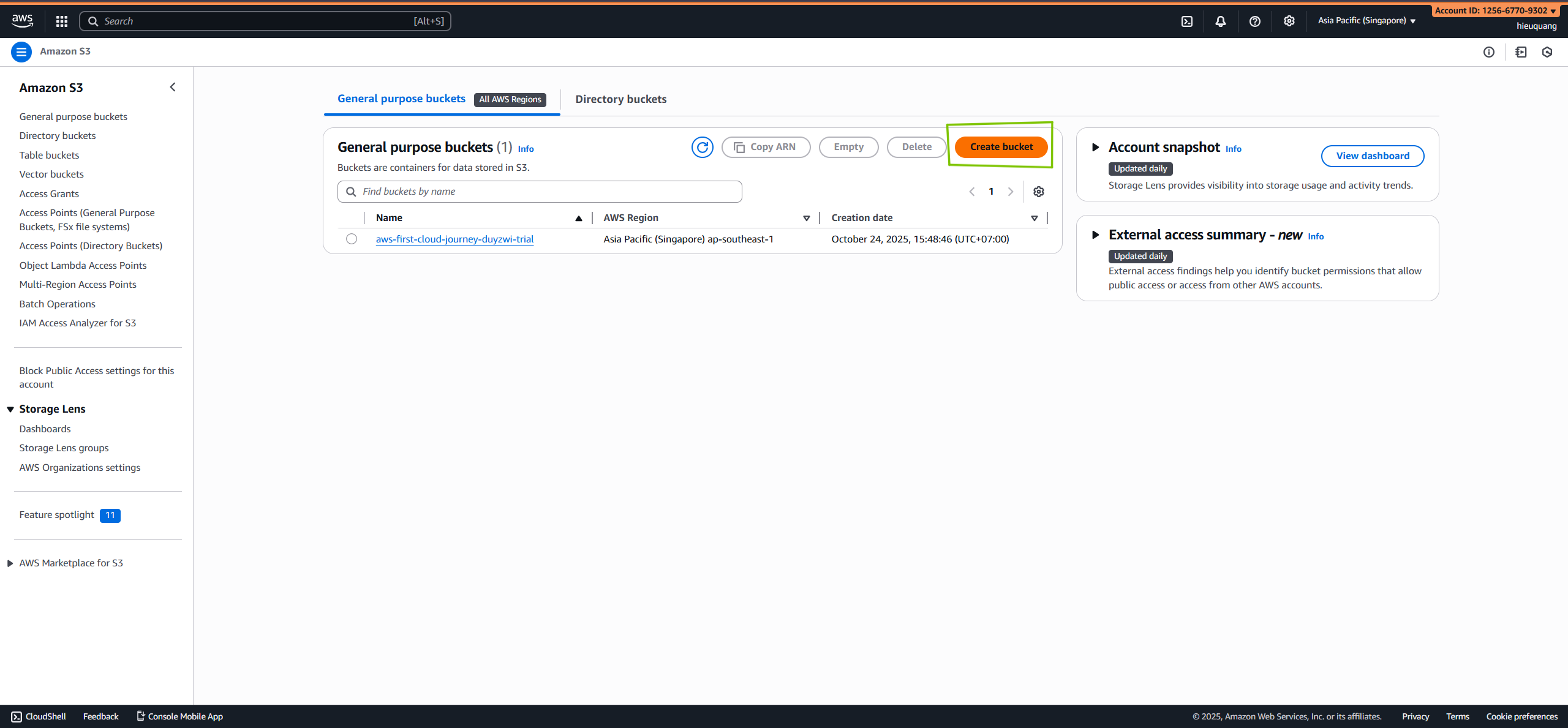
- Click Create bucket.
- Enter a unique Bucket name (for example:
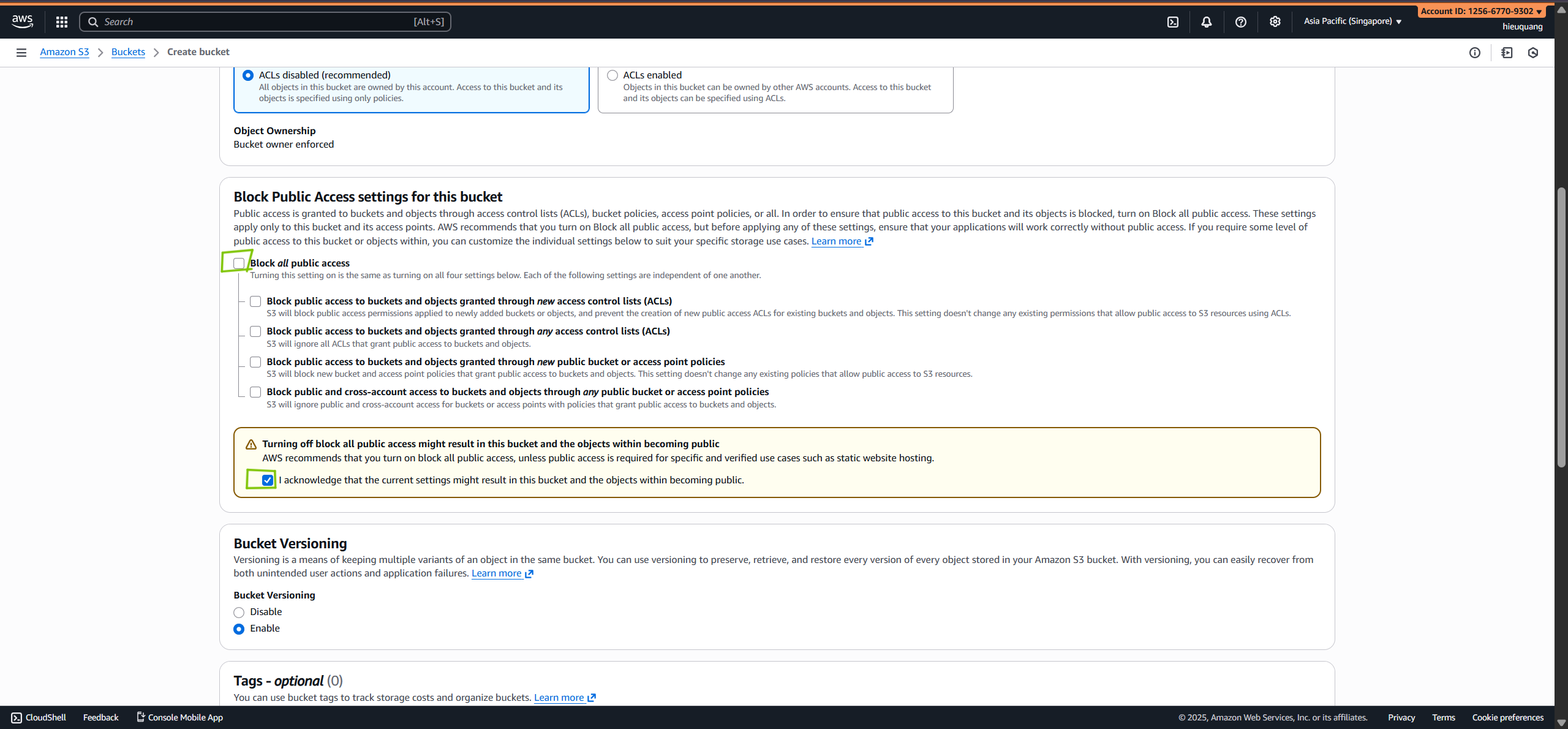
flyora-shop). - Uncheck “Block all public access”
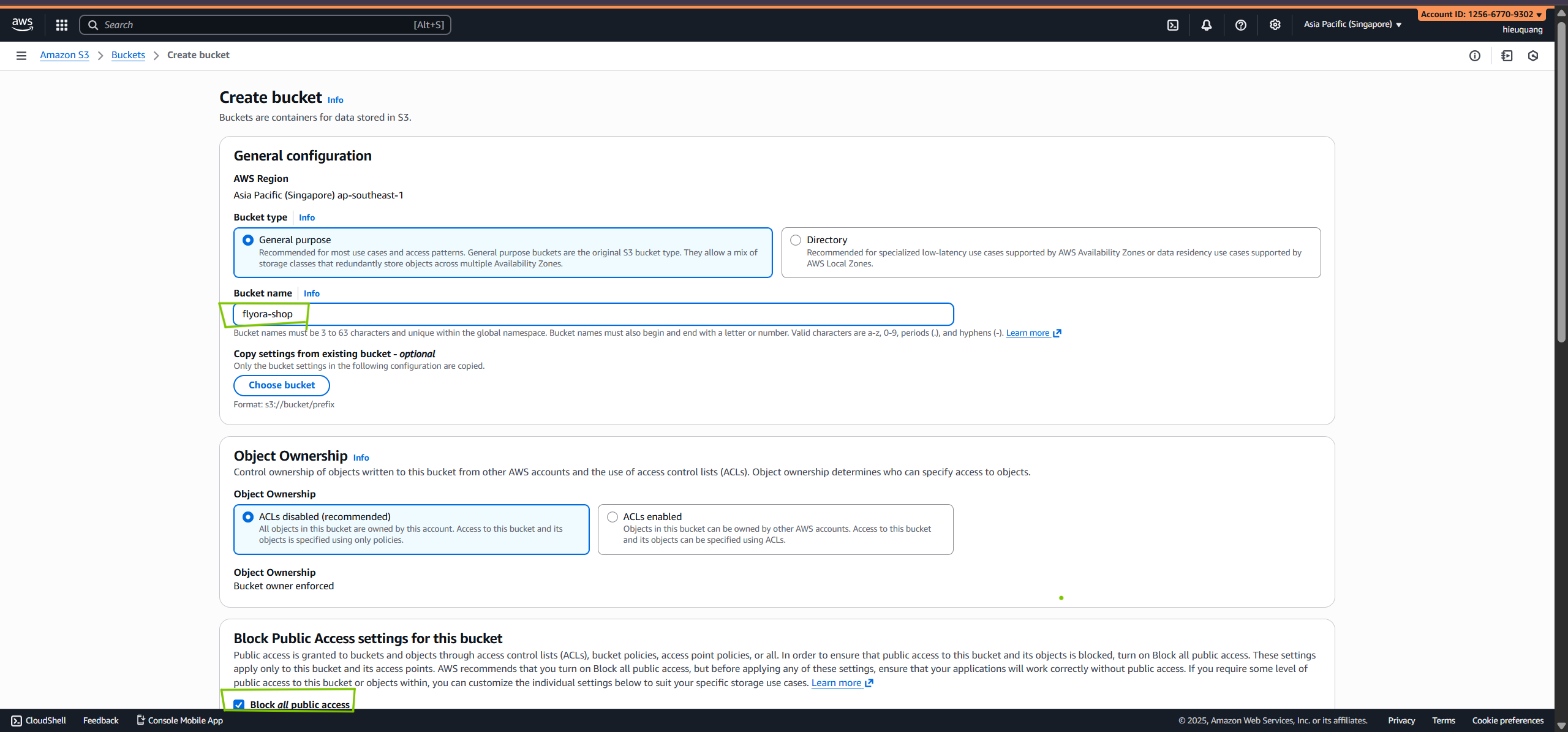
- Acknowledge the warning about public access.
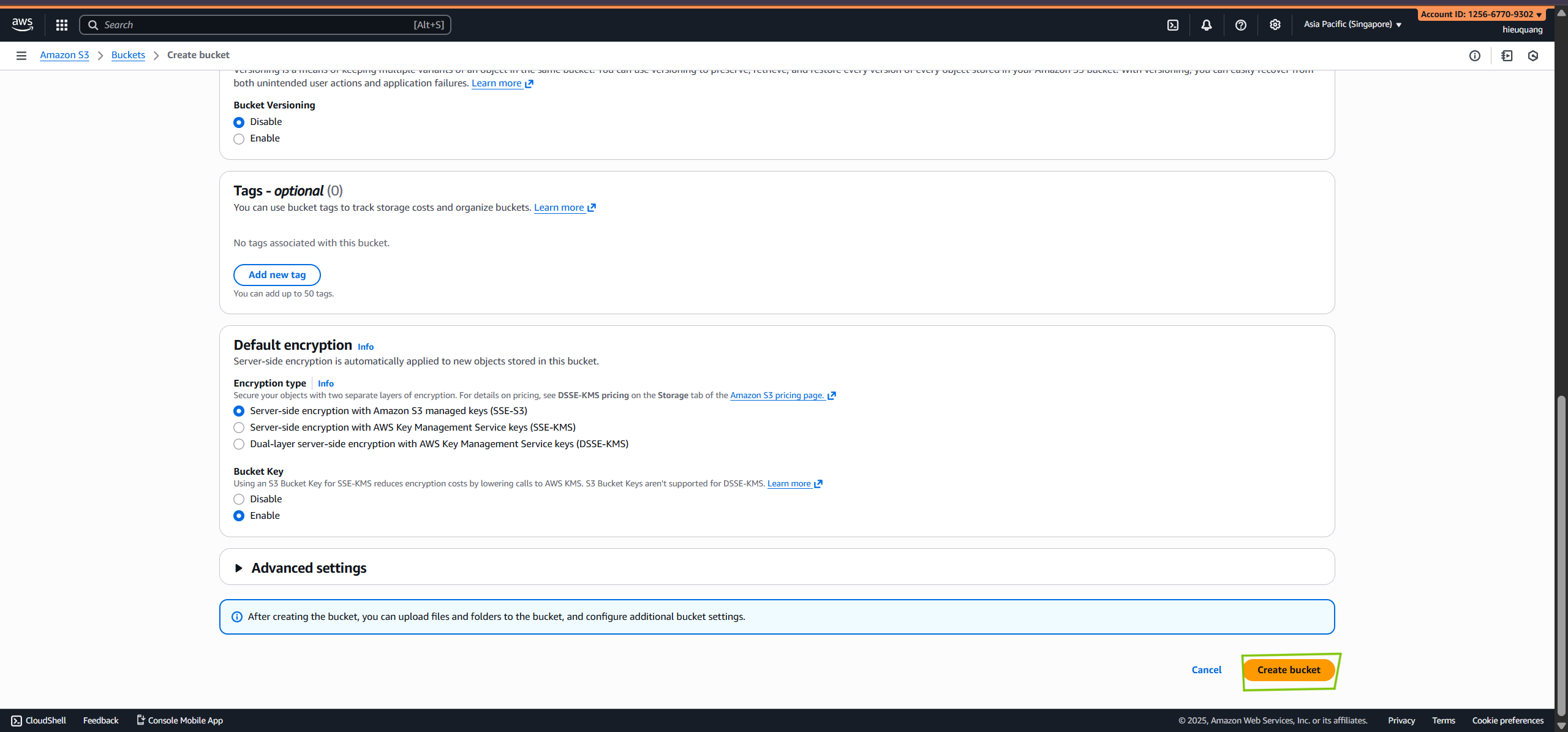
- Click Create bucket.
Step 2: Upload Website Files
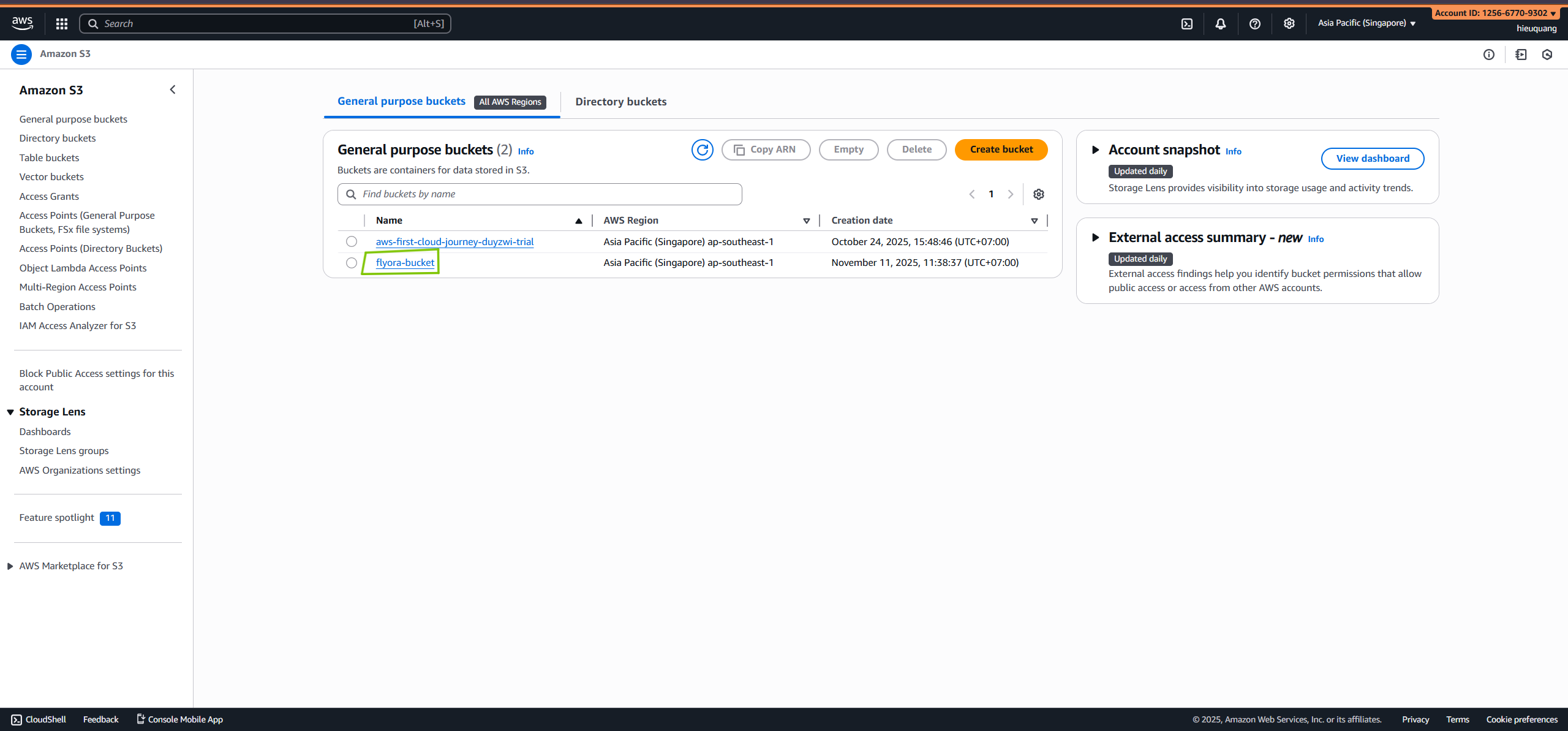
- Open your newly created bucket.
- Click Upload → Add files → select your website files (e.g,
index.html)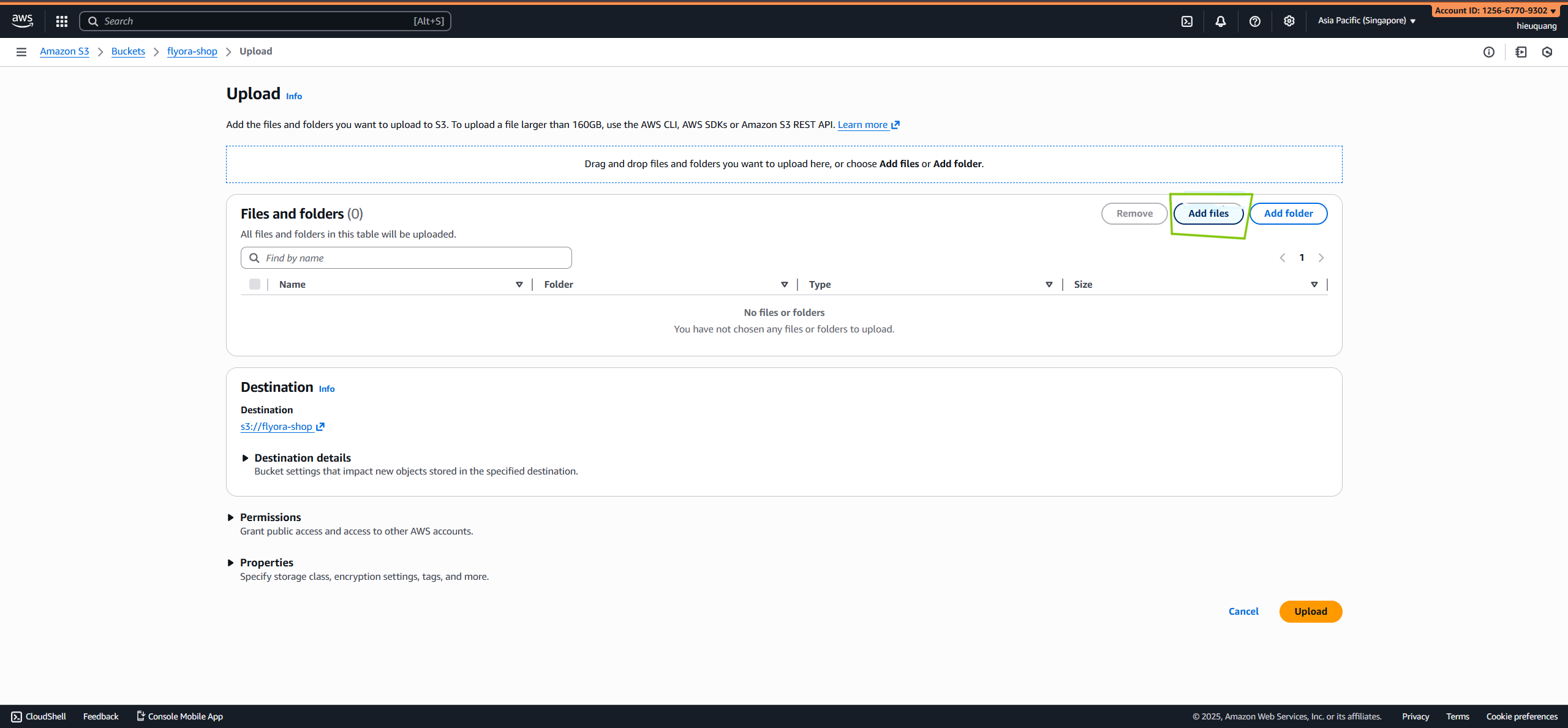
- Click Upload.
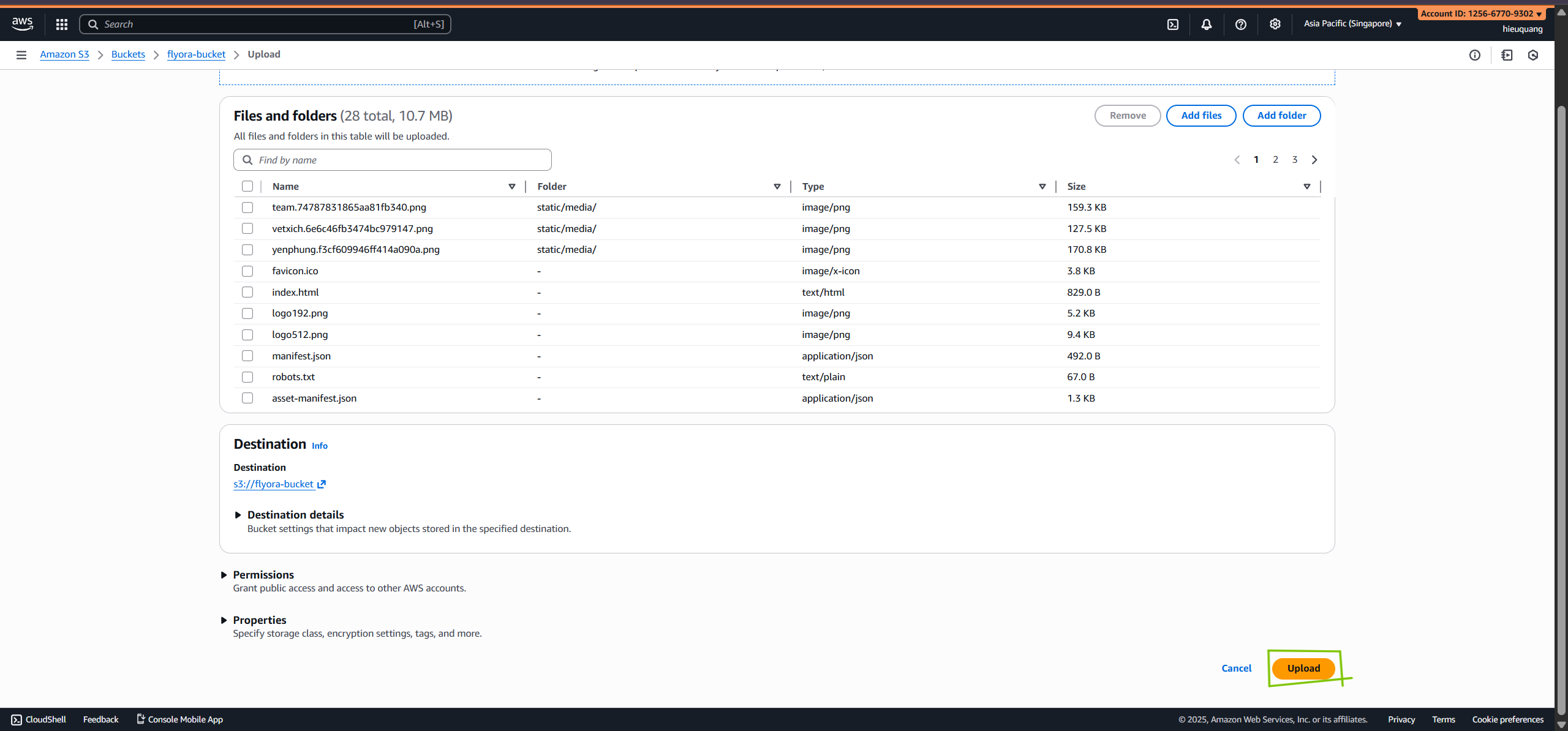
- Click Upload.
Step 3: Enable Static Website Hosting
- Go to the Properties tab of your bucket.
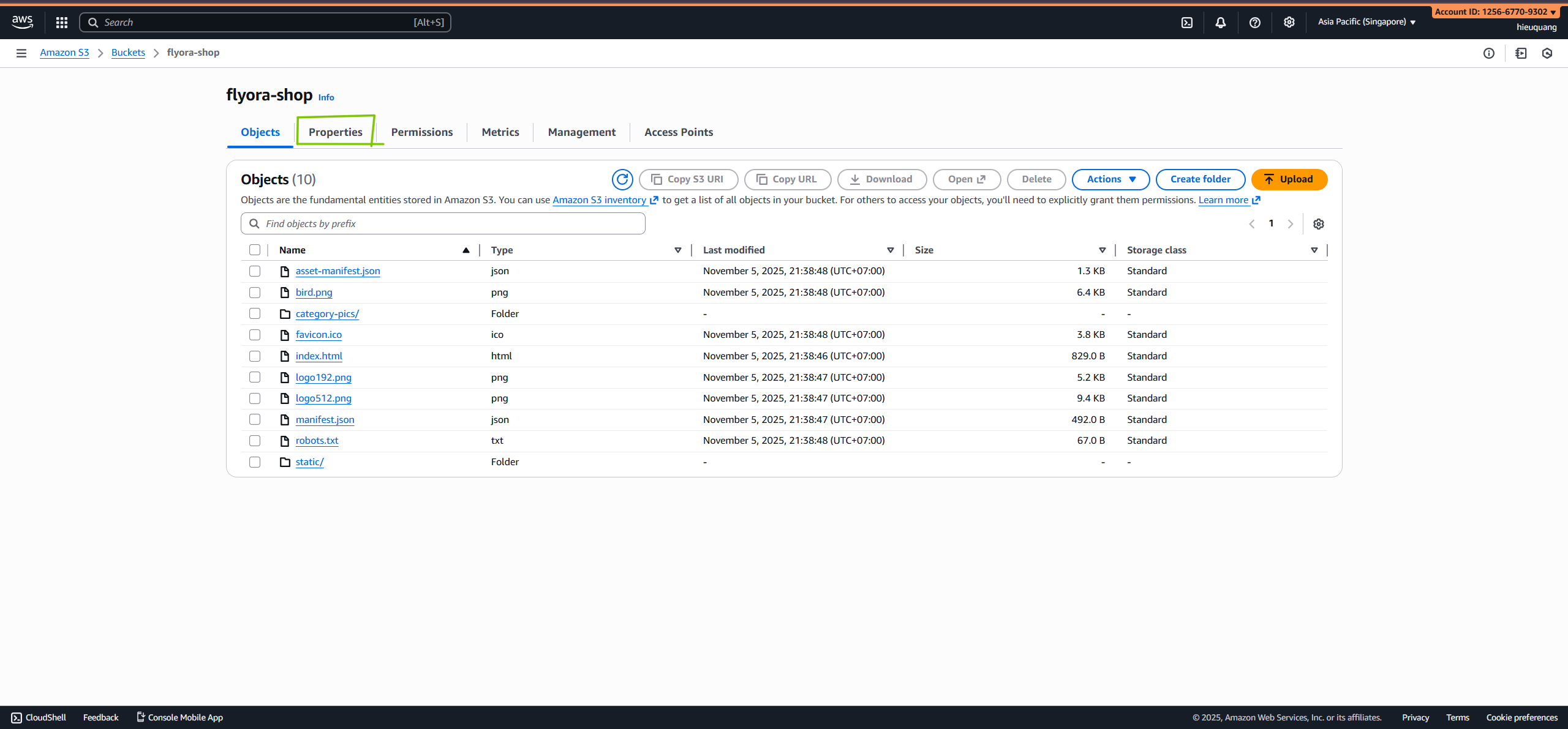
- Scroll down to Static website hosting.

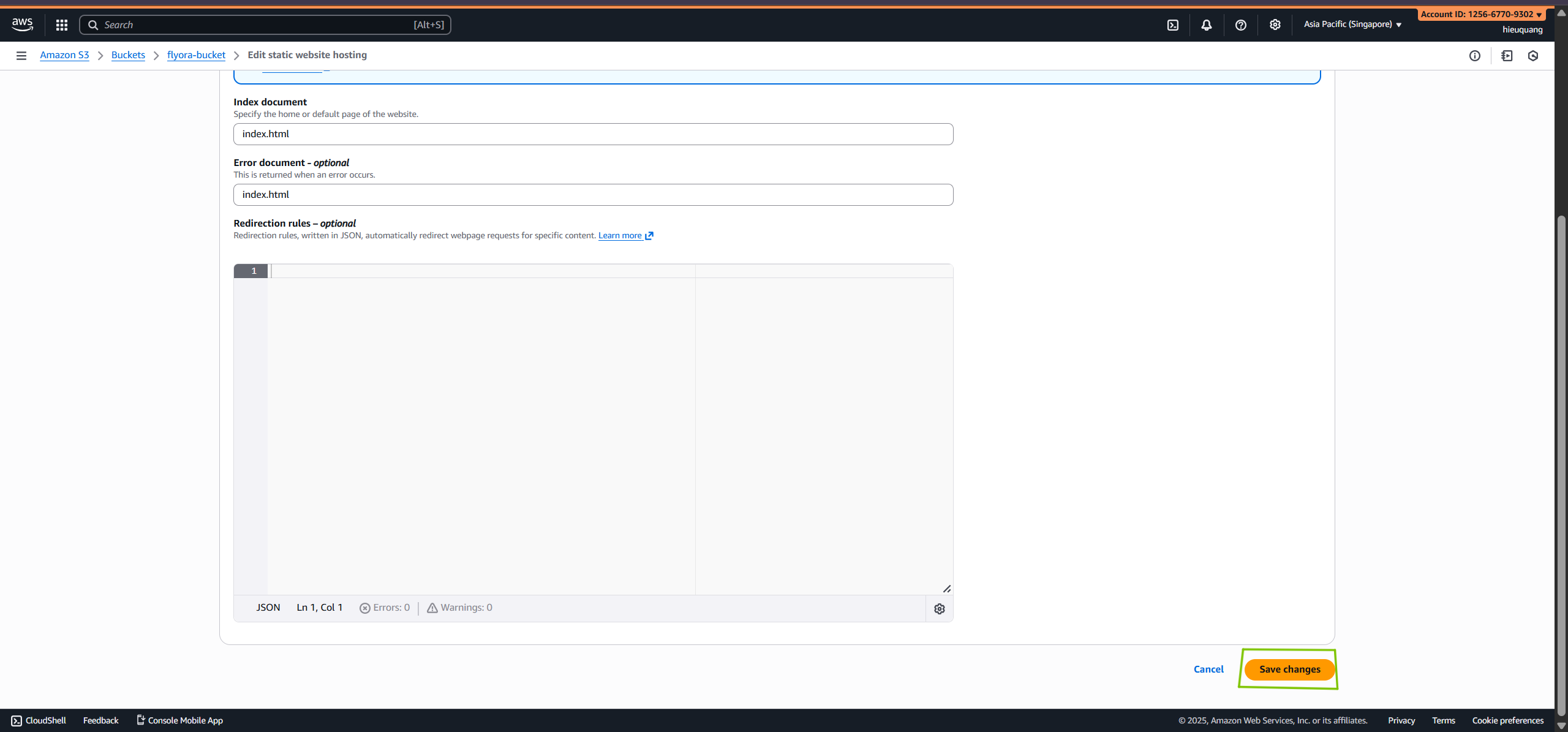
- Click Edit → Enable Static website hosting
- Enter:
- Index document:
index.html - Error document:
index.html(optional)
- Index document:
- Click Save changes.
 *Go to the Permission tab of your bucket.
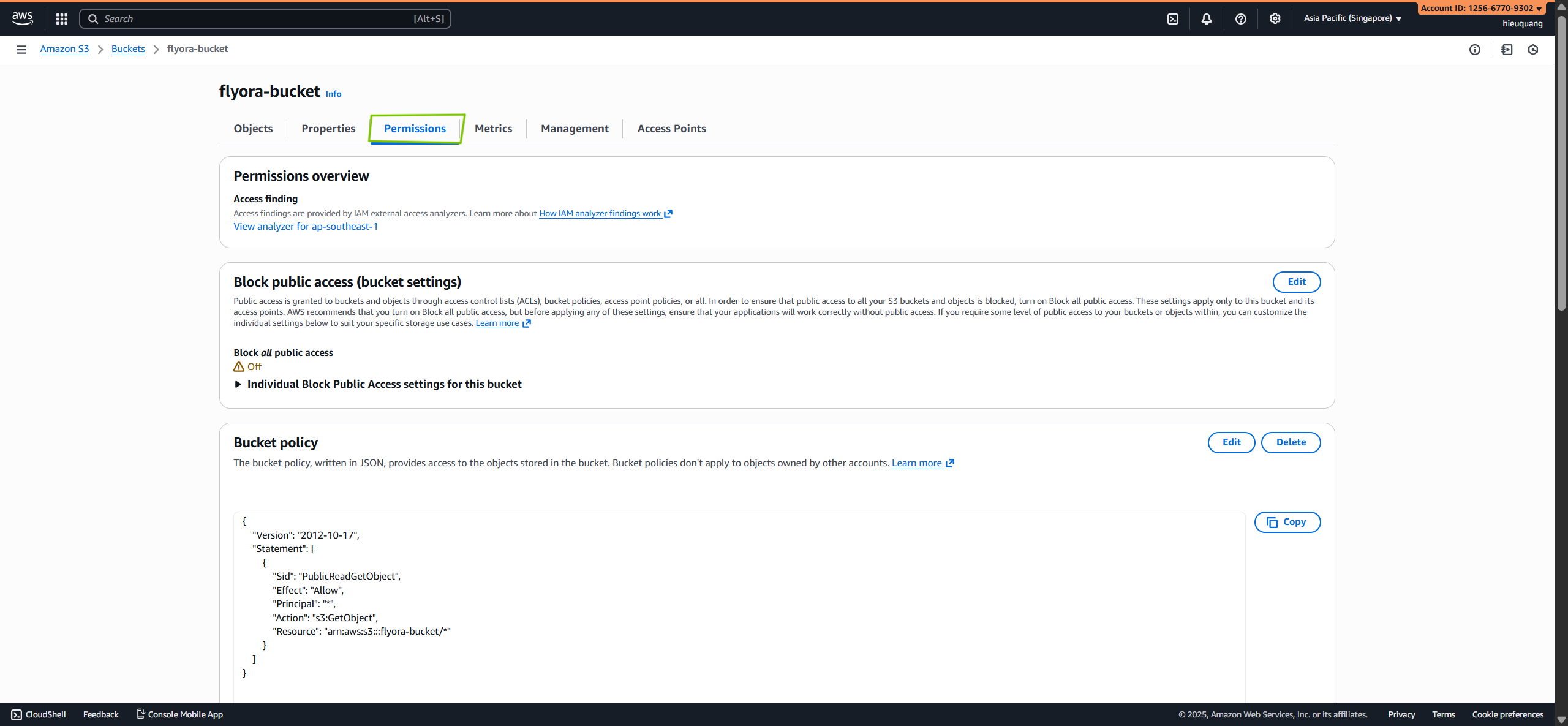
- Edit Bucket Policy
- Paste the following JSON policy (replace
flyora-shopwith your bucket name):
{
 "Version": "2012-10-17",
 "Statement": [
   {
     "Sid": "PublicReadGetObject",
     "Effect": "Allow",
     "Principal": "*",
     "Action": "s3:GetObject",
     "Resource": "arn:aws:s3:::your-bucket-name/*"
   }
 ]
}
Step 4: Test Your Website
Click the Bucket website endpoint URL.
http://your-bucket-name.s3-website-ap-southeast-1.amazonaws.com
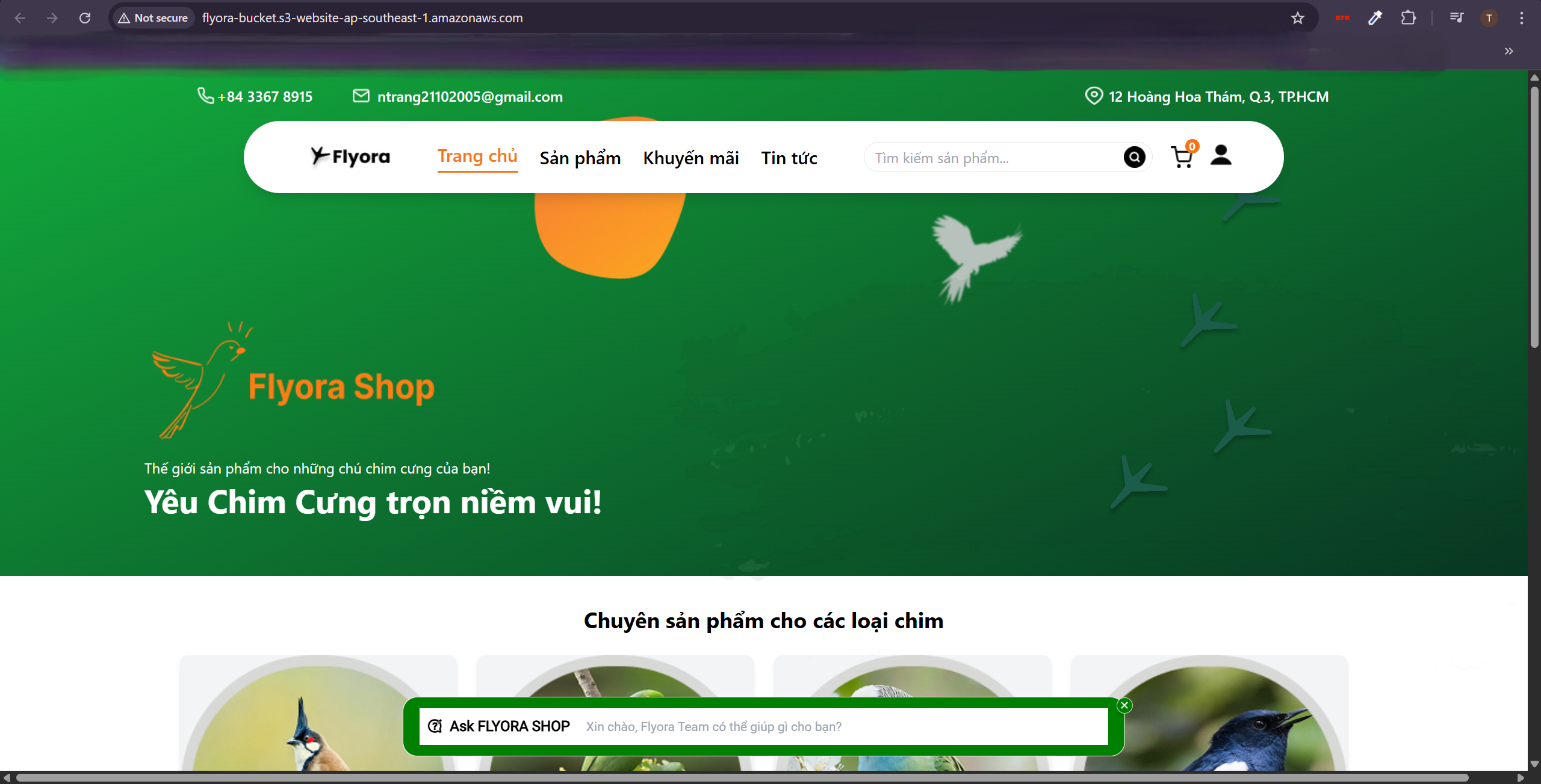
- Make sure it looks like this